
Gaia 3.0 can connect to a large language model running on infrastructure your team controls. This gives localization teams a private AI-assisted path for draft translation and review workflows without sending production strings to a third-party model API for the inference step.
Local LLM support is intentionally configured on the backend, not through a browser settings field. Gaia guides the setup, but it does not download model weights in the web interface and it does not expose arbitrary Local LLM endpoint editing to individual users. The backend talks to an operator-configured runtime such as Ollama.
This tutorial follows the same setup path shown inside Gaia’s Local LLM page: install the runtime, download one model, configure the backend environment file, restart the server, and test with a small selected-segment run before scaling up.
Before You Start
You need access to the machine that runs Gaia’s backend, because the Local LLM provider is enabled through backend environment variables. You also need a local inference runtime. The Gaia setup guide uses Ollama because it gives teams a simple way to run models locally and confirm that the runtime is responding.
For the simplest setup, run Ollama on the same machine as the Gaia backend. Gaia’s default configuration uses a loopback endpoint, so local inference stays on that machine unless your IT team deliberately allows a remote Local LLM host.
Step 1: Install the Runtime
Install Ollama where inference will run. Gaia does not install the runtime for you, and it does not download models from the browser. Confirm that Ollama can start and answer locally before changing Gaia.
# macOS / Windows
# Download and start Ollama from https://ollama.com/download

# Linux
curl -fsSL https://ollama.com/install.sh | sh

# Confirm the runtime is responding
ollama run qwen3:14b
The first run may take time because the model has to be downloaded and loaded into memory. That is normal for local inference, especially on laptops or workstations without a dedicated GPU.
Step 2: Download One Model
Start with one model tier. The in-app setup guide recommends qwen3:14b as the balanced first
validation model when the machine can handle it. Use a smaller model for a quick smoke test, and move to a
larger model only after your sample strings preserve placeholders and inline tags correctly.
-
Fast trial:
qwen3:8b, withollama pull qwen3:8b. Best for quick UI-string experiments on a 16 GB RAM class laptop. -
Recommended start:
qwen3:14b, withollama pull qwen3:14b. Best for balanced localization quality on a 24-32 GB RAM machine or Apple Silicon Pro/Max class computer. -
Workstation quality:
qwen3:30b, withollama pull qwen3:30b. Best when a 64 GB RAM class workstation or managed inference host is available. -
General fallback:
llama3.1:8b, withollama pull llama3.1:8b. Useful when a team has already standardized on Llama-family local models.
Model pages, licenses, and deployment constraints can change. Before using any model for client work, verify that your selected model is appropriate for your organization’s use case and data policy.
Step 3: Configure the Backend Environment
Local LLM is enabled by editing backend/.env. If that file does not exist yet, copy it from
backend/.env.example. Do not edit .env.example for your live setup; it is only the
sample file.
# 1) Go to the backend folder inside your Gaia install
# Replace the path below with your actual Gaia folder
cd "/path/to/your/Gaia-folder/backend"

# 2) First time only: copy the sample settings file
cp .env.example .env

# 3) Check that both files exist
ls -la .env .env.example
Open backend/.env in Cursor, VS Code, or another text editor. Search for
LOCAL_LLM. If those lines start with #, they are commented out, which means Gaia
ignores them.
Wrong: these lines are still turned off.
# LOCAL_LLM_BASE_URL=http://localhost:11434/v1
# LOCAL_LLM_MODEL=qwen3:14b
# LOCAL_LLM_API_KEY=ollama
# LOCAL_LLM_RUNTIME=ollama
# LOCAL_LLM_ALLOW_REMOTE=false
# LOCAL_LLM_TIMEOUT_MS=180000
# LOCAL_LLM_BATCH_SIZE=1
# LOCAL_LLM_MAX_RETRIES=1
Correct: remove the # at the start of each Local LLM line.
LOCAL_LLM_BASE_URL=http://localhost:11434/v1
LOCAL_LLM_MODEL=qwen3:14b
LOCAL_LLM_API_KEY=ollama
LOCAL_LLM_RUNTIME=ollama
LOCAL_LLM_ALLOW_REMOTE=false
LOCAL_LLM_TIMEOUT_MS=180000
LOCAL_LLM_BATCH_SIZE=1
LOCAL_LLM_MAX_RETRIES=1
Keep LOCAL_LLM_BASE_URL as http://localhost:11434/v1 for a normal Ollama setup on
the same machine. LOCAL_LLM_MODEL must match the model tag you downloaded in Step 2. If your
team intentionally routes inference to a remote on-premises host, IT should set the endpoint and enable
LOCAL_LLM_ALLOW_REMOTE=true deliberately.
Step 4: Restart and Test
Saving backend/.env is not enough. Restart Gaia’s backend so the server reads the new Local
LLM configuration.
# Open a new Terminal window

# Go to the backend folder
cd "/path/to/your/Gaia-folder/backend"

# Start Gaia's server and load backend/.env
npx tsx --env-file=.env watch src/server.ts
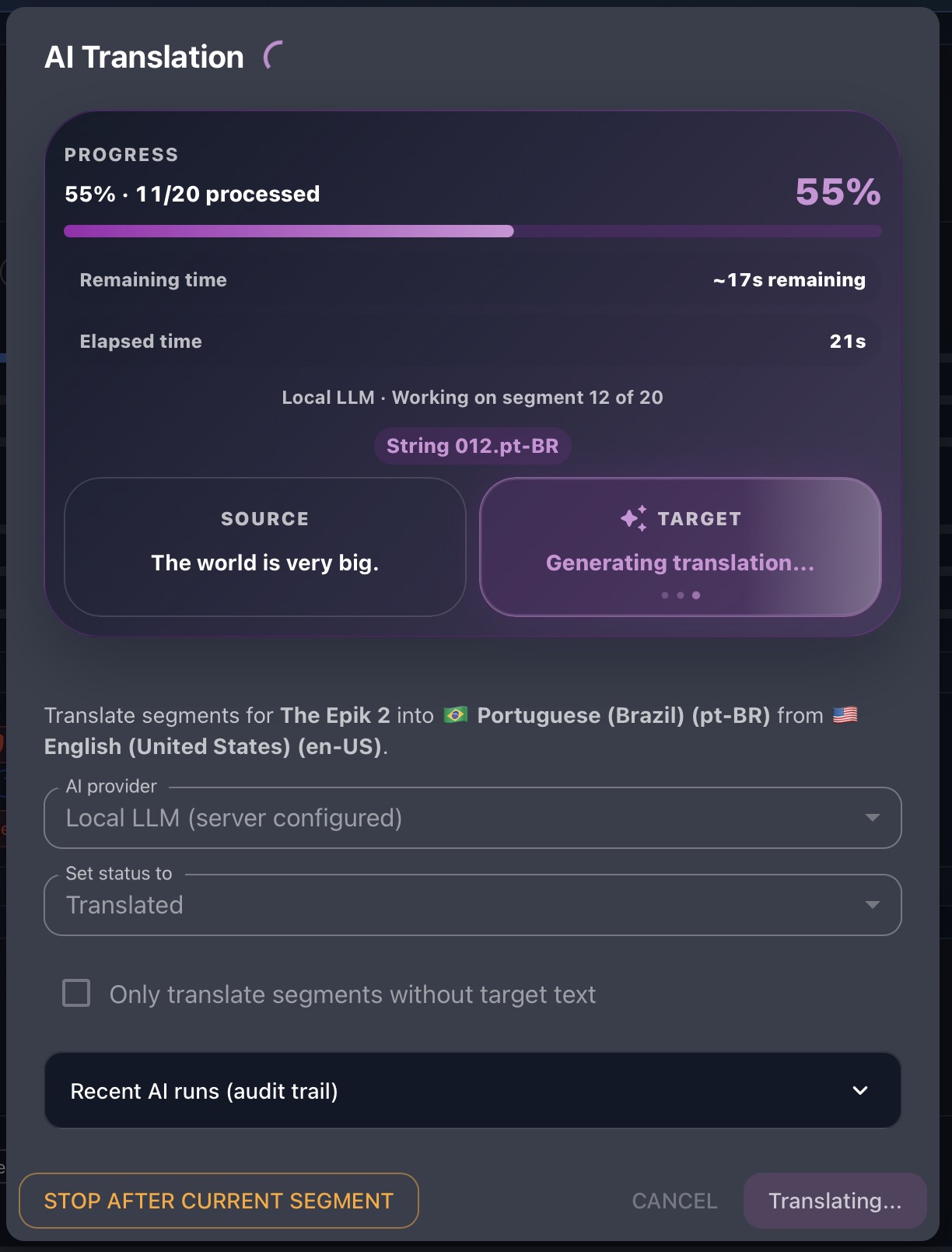
When the backend is listening again, return to Gaia in the browser. Open a project card, choose AI/MT translate, select Local LLM (server configured), and run selected segments first. Do not start with the whole project file.
A good first test uses a string with placeholders and inline tags. The translated output must keep every placeholder and tag exactly.
Translate this UI string from English to pt-BR.
Keep placeholders and tags exactly:
Save {count} <b>files</b>
Readiness Rules
Use Local LLM on a small controlled batch first. Gaia’s setup page keeps these checks visible because local inference can vary by hardware, model size, memory, and content type.
- The Local LLM endpoint is loopback unless remote inference is intentionally allowed.
LOCAL_LLM_BASE_URLandLOCAL_LLM_MODELare both set.- Batch size starts at 1 until latency and memory use are measured.
- A sample string with placeholders and tags keeps every token exactly.
- The first real project run uses selected segments, not the whole file.
Gaia records Local LLM inference as provider local, not OpenAI. This matters for auditability:
teams should be able to distinguish cloud AI runs from local inference runs.
Current Limits
The Local LLM page is setup guidance, not a live health check. It does not yet prove model quality, run a one-click sample translation, or confirm backend readiness from the browser. Treat the selected-segment test as the operational smoke test until a future backend health-check workflow is added.
If Local LLM does not appear in the AI/MT menu, reopen backend/.env, confirm every
LOCAL_LLM_* line starts with LOCAL instead of #, save the file, and
restart the backend again.
Local LLM Translation in Gaia
The video below shows the Local LLM translation workflow from the Gaia project card after the backend provider has been configured.
Local LLM support gives teams more ownership over AI-assisted localization. The model runs where your organization chooses, editors still review the output before delivery, and Gaia keeps the workflow inside the same project, translation memory, glossary, QA, and audit structure.