The Project Card
The Project Card, found in the Projects menu, is the starting point for most localization workflows in Gaia.
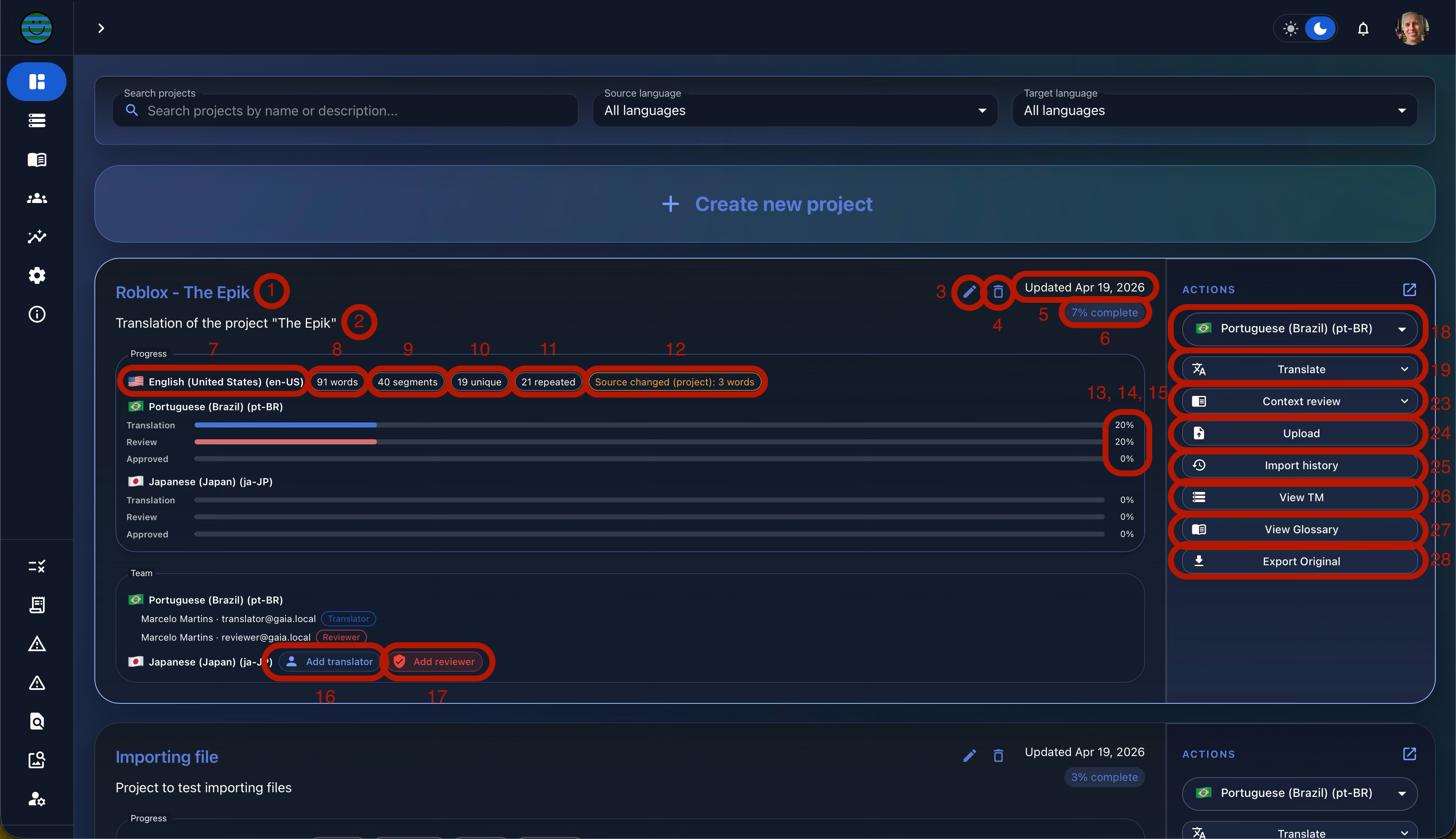
At the top of the card, you will find:
- The project name (1)
- A short project description (2)
- The pencil icon to edit these properties (3)
- The trashcan icon to delete the project (4)
- The date of the last update (5)
- The cumulative completion percentage across all languages (6)
Below this section, Gaia displays detailed progress information for each language.
In Gaia, every language entry follows the same structure:
- Flag
- Language name
- Country
- Locale/language tag
First, you will see the source language. In our example project, this is English (United States) (7).
To the right of the language code, Gaia displays chips with additional information. For the source language, these chips show:
- Total number of words (8)
- Total number of segments (9)
- Number of unique segments (10)
- Number of repeated segments (11)
If changes are made to the source content after the initial upload, Gaia also displays an additional yellow tag showing the cumulative number of changed source words (12). This is important because it immediately alerts project owners and linguists to source updates that may require rework.
The target language section shows completion progress for each language and each workflow step. In Gaia:
- Translation is shown in blue (13)
- Review is shown in red (14)
- Approved is shown in green (15)
In the Team section, you can see the list of languages and the members assigned to each one, along with their roles. If a required member has not yet been assigned, Gaia provides a button to add them (16) (17).
The Action Panel
On the right side of the Project Card, you will find the Actions panel.
The first option allows you to select the target language from the dropdown menu (18).
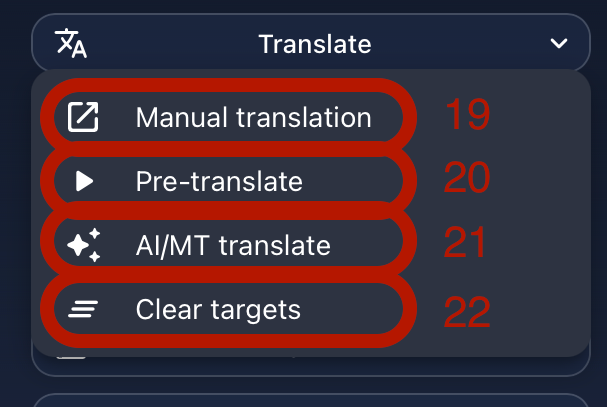
The Translate button includes four options:
-
Manual Translation (19)
Opens the translation grid so the content can be translated manually. -
Pre-translate (20)
Populates the target content with matches already available in the translation memory. You can choose whether to use entries from the current project only or from all translation memory entries across projects you own. -
AI/MT Translate (21)
Uses either AI or machine translation to generate suggestions that can later be reviewed and edited in the translation grid.
To use OpenAI, you must enter your API key in your profile settings. Gaia also supports free options such as Google Translate, LibreTranslate, and MyMemory.
You can also choose whether the generated segments should be marked as Translated, Reviewed, or Approved. -
Clear targets (22)
Removes all the content presently in the target language.
Additional actions in the panel include:
- Context Review (23): Allows linguists to review content in context once it has been implemented in the product. Users can upload an image or video, then use Gaia's controls to identify and report issues directly in context. Once submitted, these issues become available for analysis in the Reports section.
- Upload (24): Upload new files to expand the scope of the project.
- Import History (25): View the log of files previously imported into the project.
- View TM (26) and View Glossary (27): Open the Translation Memory and Glossary pages, respectively.
- Export Original (28): Opens the export options for the project. You can apply filters to choose which segments to export and select the desired file format, including Grouped JSON, Nested JSON, Flat CSV, Excel, and Microsoft Word.
If you have specific needs to customize the Project Card, let us know. We will be glad to adapt it for your workflow.
Watch the Tutorial
Follow Tomori Systems on YouTube, Instagram, TikTok, and LinkedIn for more Gaia updates.