
Your Vendor Network, in One Place
Choosing the right vendor for a multilingual localization project takes more than comparing prices. Managers need to understand language coverage, services, specialist experience, availability, and how each contributor fits the work ahead. When that information is spread across spreadsheets, inboxes, and separate tools, even a familiar vendor can take time to find and evaluate.
Gaia’s Vendor Database brings those details into one interface. Contact information, language pairs, and rates sit alongside services, specialties, tools, and optional planning information such as availability and productivity. The result is a clearer view of your external network and a shorter path from identifying a need to assigning a vendor.
Overview - Understand the Vendors in View
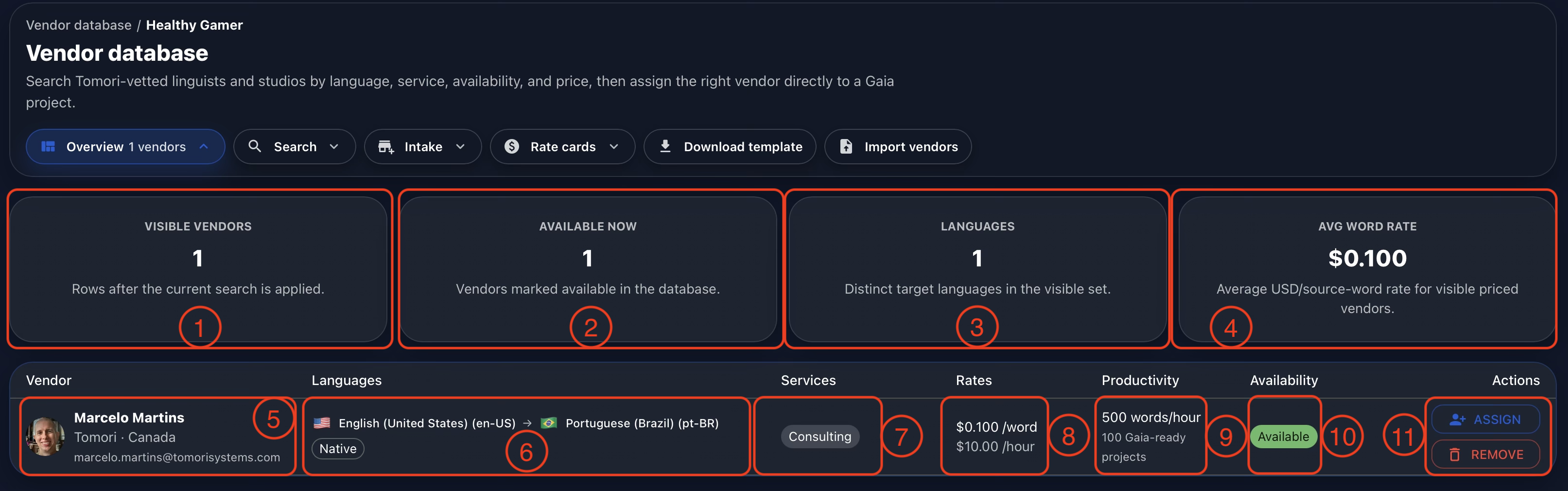
Open Overview to see the current vendor results. The summary cards show how many vendors are visible after the current search (1), how many are marked available (2), the distinct target languages represented (3), and the average USD rate per source word among visible vendors with pricing (4). These figures describe the current result set, helping you assess a shortlist quickly.
The table connects those totals to individual records. Each row shows the vendor’s name, company, country, and contact details (5); source and target languages (6); services (7); word and hourly rates (8); productivity and completed-project information (9); and availability (10). The Actions column provides Assign and Remove controls (11).
Read the fields together. A low word rate is only one part of the decision; relevant experience, the requested service, and realistic availability help determine whether a vendor is a good fit. The availability badge reflects the information recorded in the database, so confirm the vendor’s current capacity before committing to a schedule.
Search - Build a Relevant Shortlist
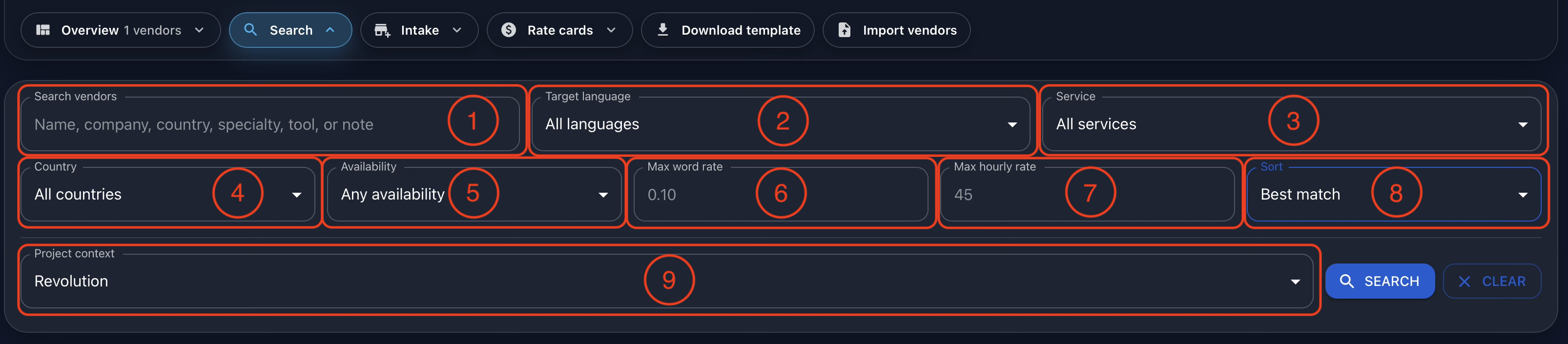
The Search vendors field accepts a name, company, country, specialty, tool, or note (1). A single search box makes it easier to find a vendor using the detail you remember, without first choosing which field to search.
Narrow the results by target language (2), service (3), country (4), and availability (5). Set a maximum word rate (6) or maximum hourly rate (7) to focus the search on vendors whose listed pricing fits your project requirements. These filters support budget planning; the final scope and agreed rates still determine the cost of an assignment.
Use Sort (8) to order results by best match, lowest word rate, lowest hourly rate, highest productivity, name A-Z, or newest addition. Select the relevant Project context (9) to keep the search connected to the project you are staffing, then select Search. Clear resets the search controls when you need to broaden the results.
Intake - Add the Vendors You Already Trust
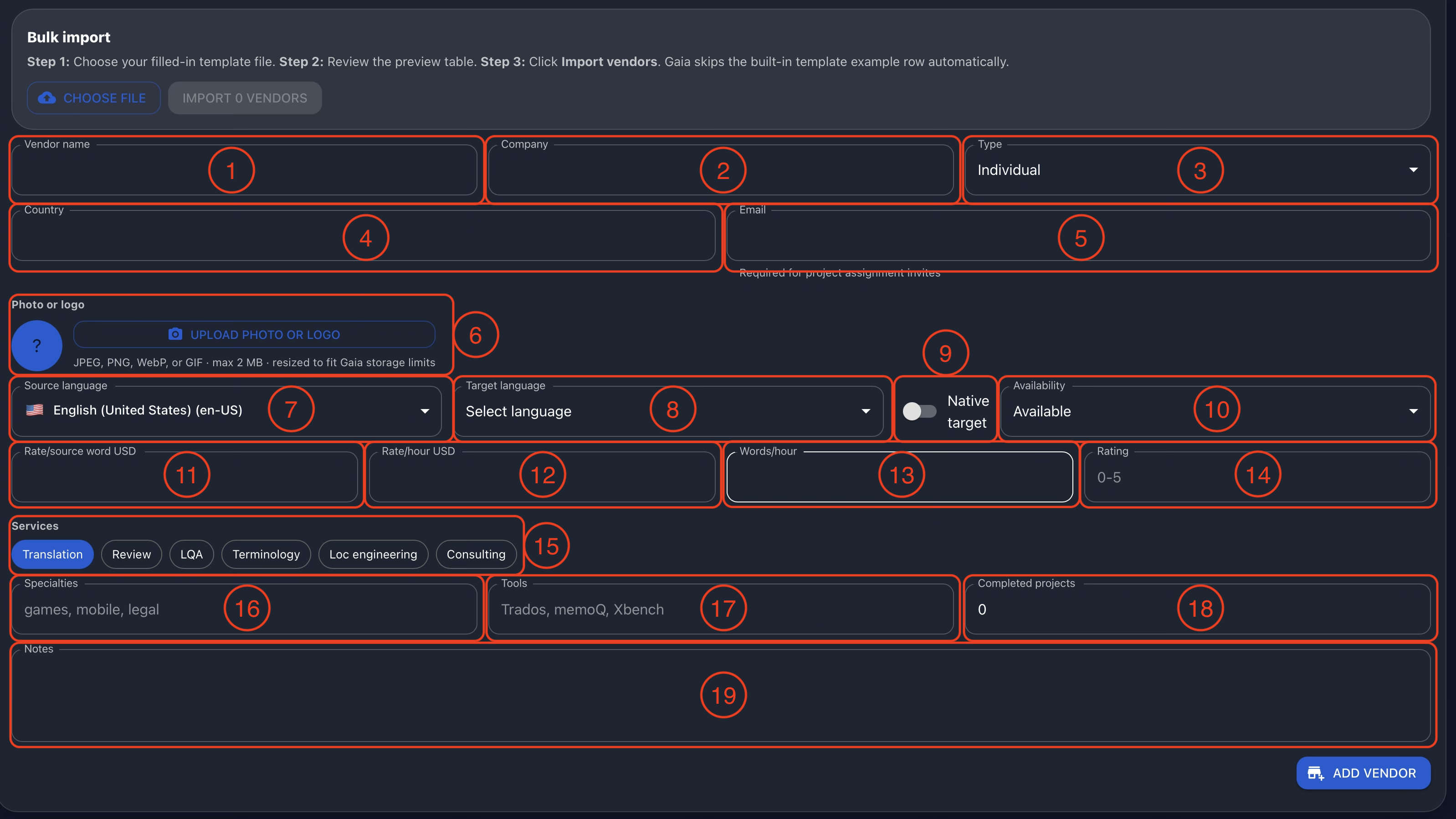
Open Intake to add a vendor directly or bring existing records into Gaia through bulk import. The form starts with vendor name (1), company (2), whether the vendor is an individual or a company (3), country (4), and email (5). The email address is required for project assignment invitations, so use the contact that should receive those requests.
Upload a photo or logo (6), select the source language (7) and target language (8), and indicate whether the vendor is a native speaker of the target language (9). Record availability (10) to make that information visible during future searches.
Capture Pricing, Capabilities, and Experience
Enter the rate per source word in USD (11), hourly rate in USD (12), and productivity in words per hour (13). A rating from 0 to 5 (14) adds another reference point for your team. Keep these entries grounded in the vendor information and evaluation practices your organization uses.
Select the services provided (15), such as translation, review, LQA, terminology, localization engineering, or consulting. Add specialties (16), tools (17), the number of completed projects (18), and notes (19) to preserve the context that a price list alone cannot capture.
Those details make the database more useful over time. A manager searching for a specific subject area or tool can find a suitable vendor without relying on someone else’s memory. Review the record, then select Add Vendor.
Bring Existing Records into Gaia
Use Download template to obtain the Excel template for bulk import. Transfer your existing vendor information into the template’s columns, then open Import vendors or use the Bulk import area in Intake.
Choose the completed file, review the preview table, and select Import vendors when the records are ready. Gaia automatically skips the built-in example row. Reviewing the preview gives you an opportunity to check contact details, language pairs, and rates before adding the records to the database.
Rate Cards - Keep Pricing Connected to the Vendor
Open Rate cards to review pricing alongside the vendor records. In the view shown below, each vendor’s base word and hourly rates remain visible with their languages, services, productivity, and availability. This keeps commercial information close to the operational details used for selection.
Gaia stores rate cards on vendor profiles, with support for pricing by client, language pair, service, and match band. The screen shown here presents the base-rate view; it does not display expanded client-specific or match-band tables. Use the visible rates as a starting point and confirm the applicable terms for the assignment.

Conclusion
Finding the right vendor at the right time is central to reliable localization delivery. Gaia’s Vendor Database brings the information needed for that decision into the same environment as the project: who the vendor is, what they offer, which languages they support, and how their rates and availability fit the task.
With searchable profiles, focused filters, direct intake, bulk import, and assignment actions, managers can spend less time reconciling vendor lists and more time building the right team. The value comes from a better-informed choice: one that respects the budget, the work, and the people delivering it.
Watch the full demonstration below.
Full Demonstration
Watch the Vendor Database tutorial to see the workflow in action.
Follow Tomori Systems on YouTube, Instagram, TikTok, and LinkedIn for more Gaia updates.