
The Heart of Gaia
The translation grid is the heart of Gaia. It is also the part of the product that took the longest to finish, because this is where quality, productivity, and daily linguistic judgment all meet.
At Tomori, we wanted the grid to capture the strongest patterns from modern CAT tools while remaining flexible enough to adapt to the workflows our clients may need in the future. That flexibility is central to how Gaia is built.
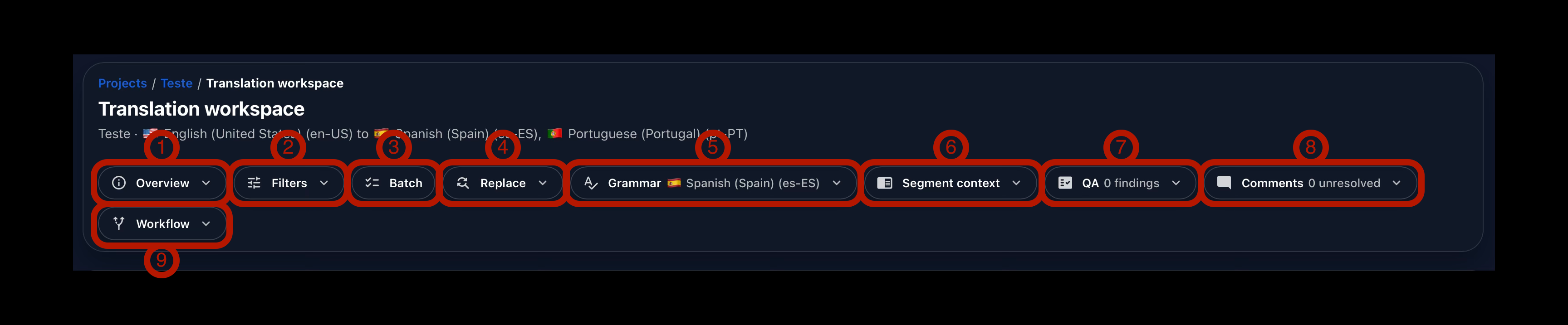
Like the other main pages in Gaia, the Translation Grid includes a main header that gives users direct access to the most important tools and information. The current header includes nine primary controls:
- Overview (1)
- Filters (2)
- Batch (3)
- Replace (4)
- Grammar (5)
- Segment context (6)
- QA (7)
- Comments (8)
- Workflow (9)
Now, let us look at what each of these controls does.
Overview
The Overview panel gives a richer progress view than the Project Card. It shows the full project status across Pending (1), New (2), In Progress (3), Translated (4), Reviewed (5), and Approved (6) segments.
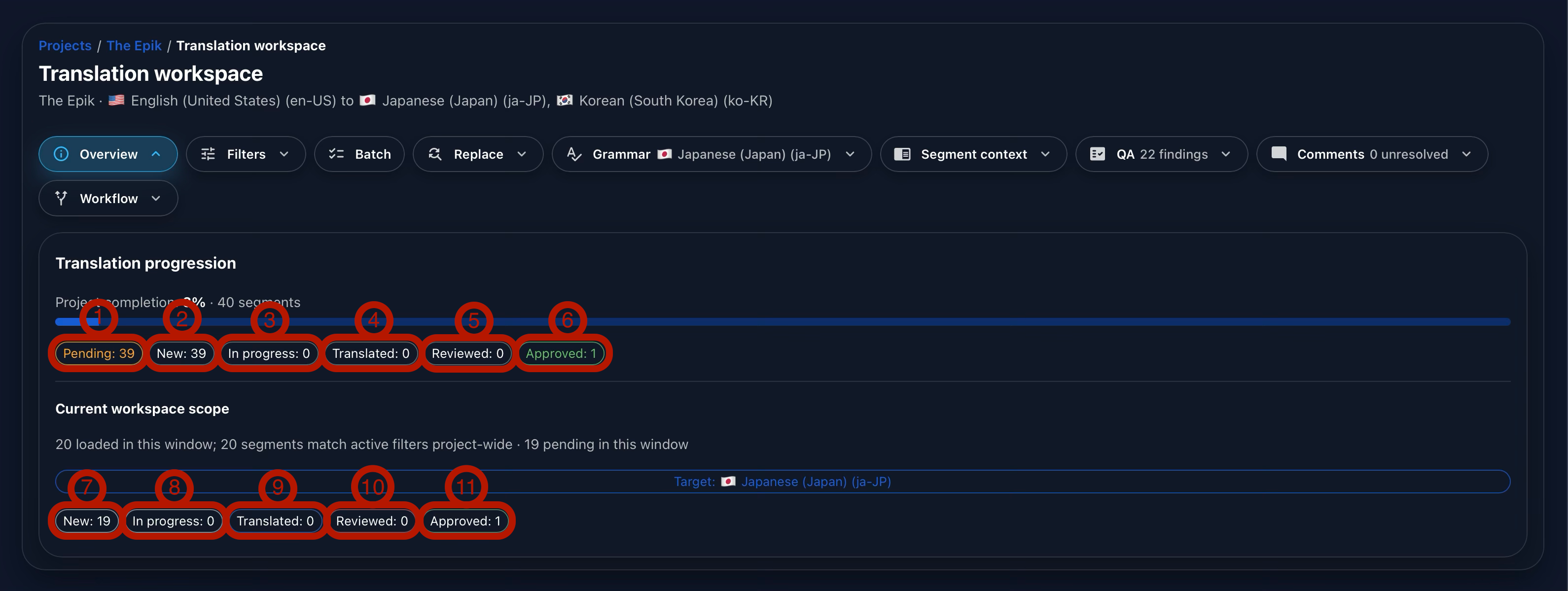
It also shows the progress of the selected language, including New (7), In Progress (8), Translated (9), Reviewed (10), and Approved (11) segments.
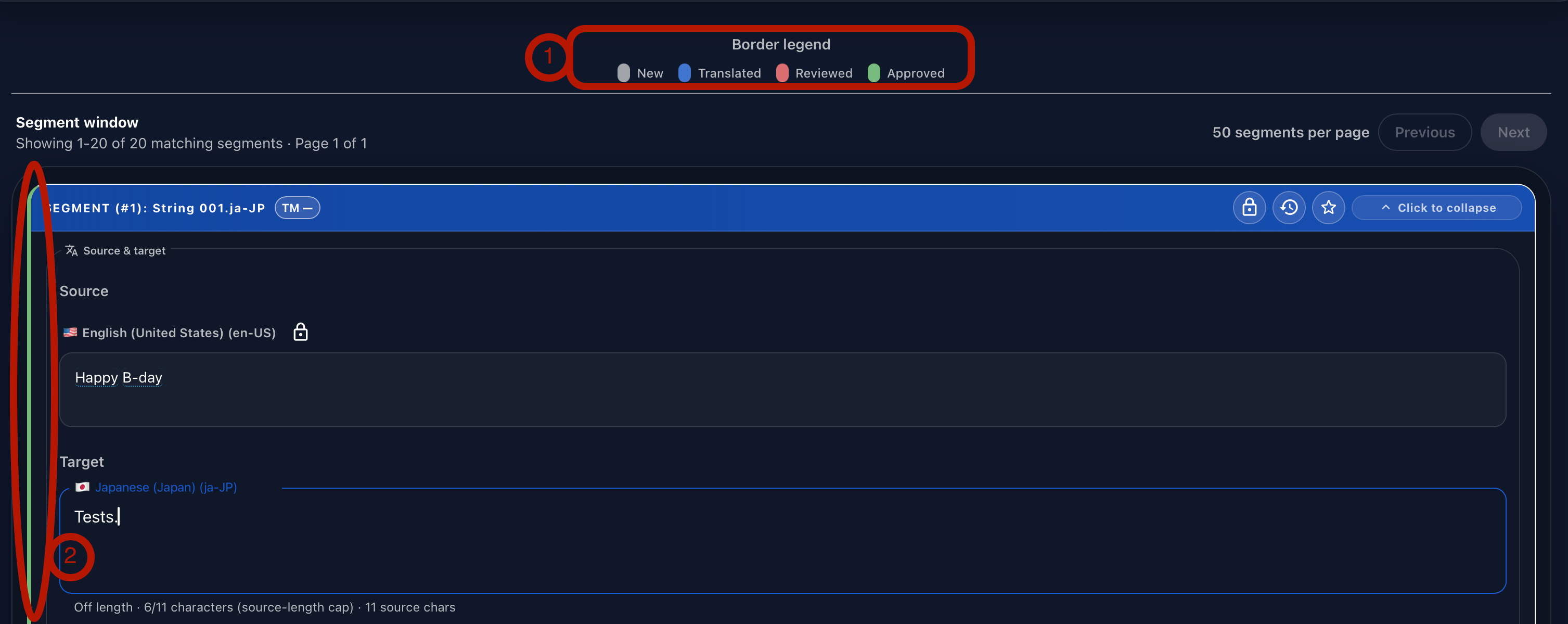
The border legend explains the status color used on each segment (1). Gray means new, blue means translated, red means reviewed, and green means approved. These colors appear on the left side of each segment so linguists can scan the grid quickly (2).
Filters
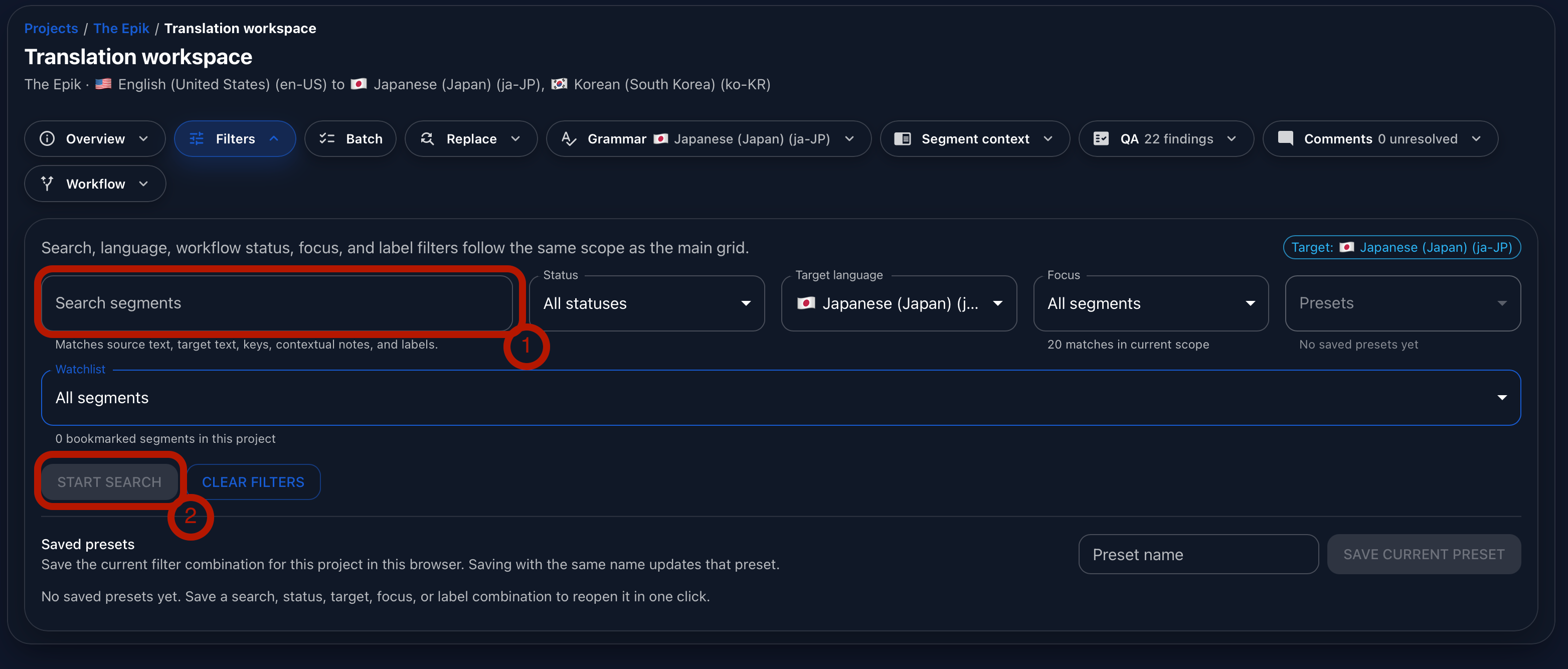
Filters help linguists find the exact segments they need to work on. Search is the simplest option: type into the search field (1), then activate the filter by clicking Start Search (2).
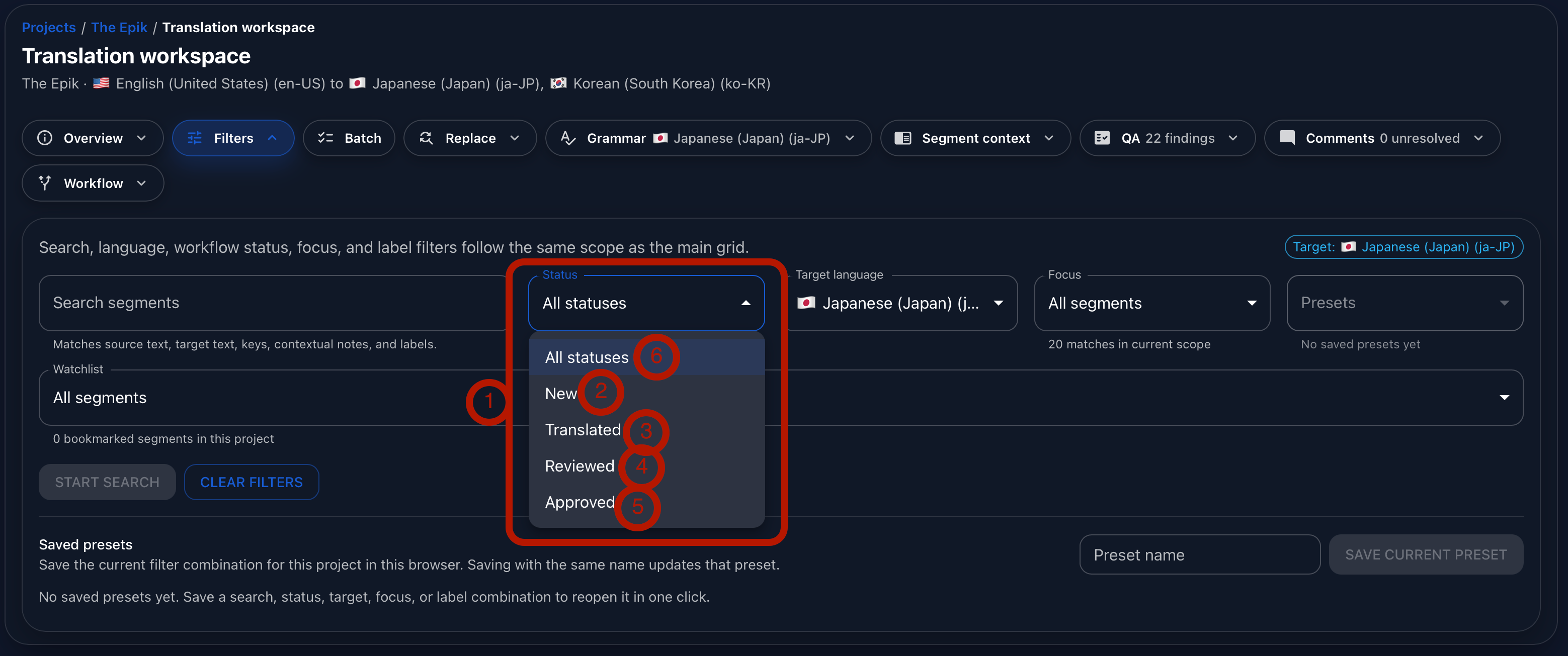
Status filters (1) narrow the grid by segment status. Users can filter for New (2), Translated (3), Reviewed (4), Approved (5), or all statuses (6).
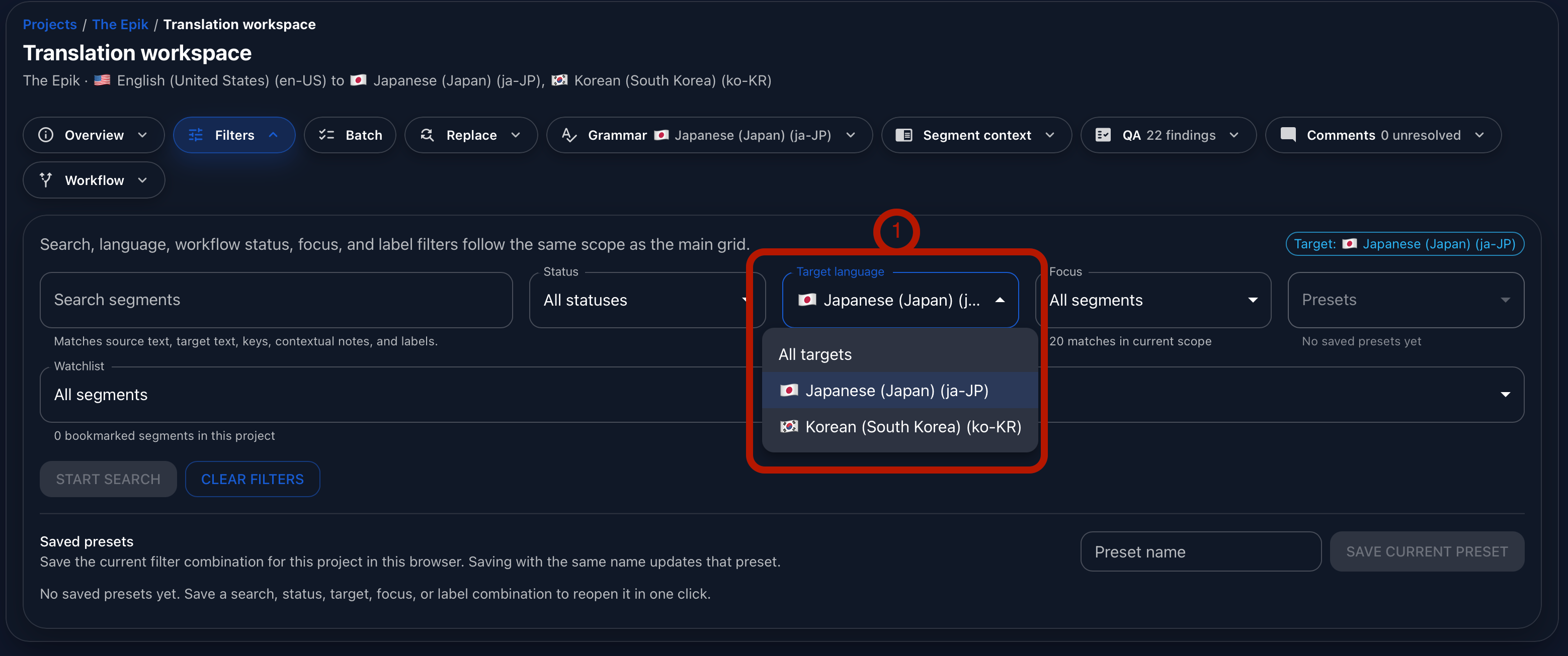
Target language filters (1) let users switch the active target language directly from the grid, regardless of the target selected from the Project Card.
The focus filters (1) narrow the grid to segments with QA issues (2), unresolved comments (3), resolved comments (4), empty target text (5), or existing translations (6).

Users can also bookmark specific segments (1) by clicking the bookmark icon (2). Bookmarks are useful for segments that require later follow-up, discussion, or review. Finally, users can save a filter configuration as a preset. Start by typing a preset name in the field (4), then click Save Current Preset (5). Gaia stores the preset so the same working view can be loaded again later.

Batch
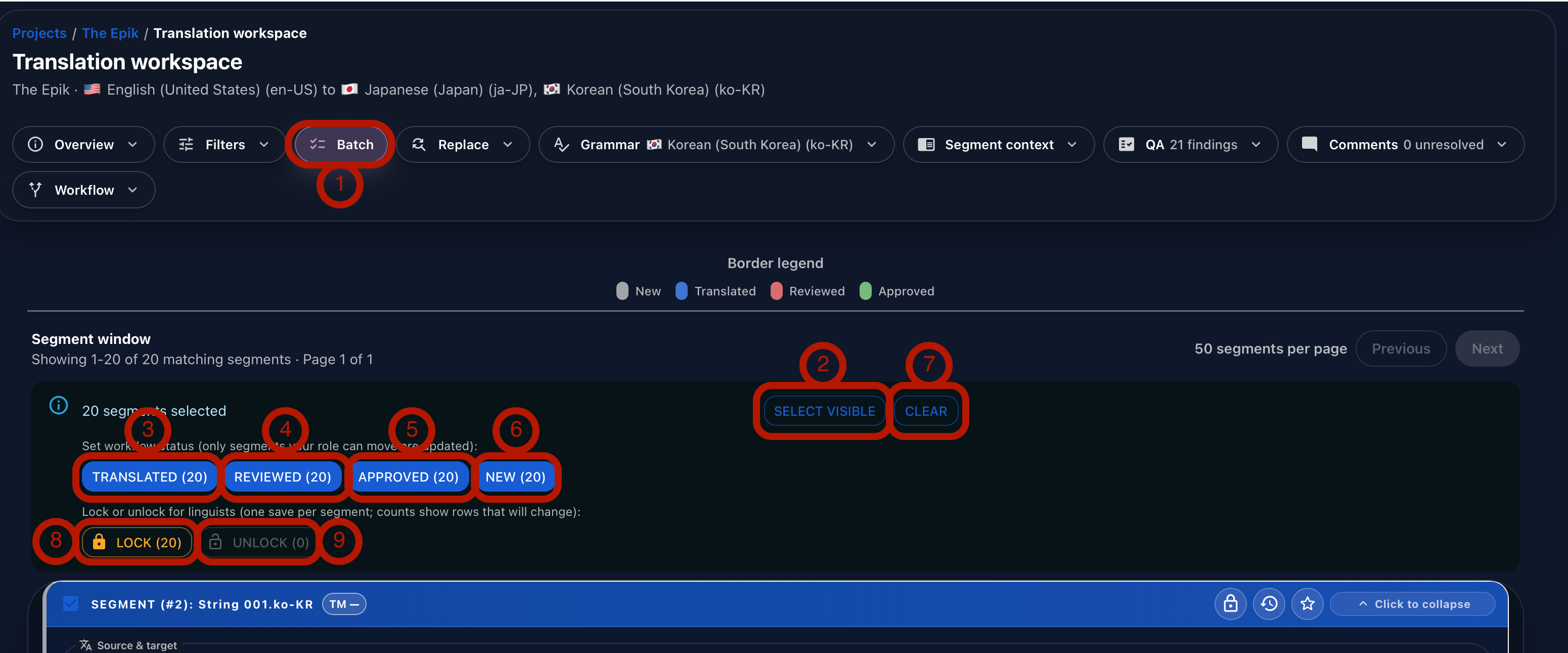
The Batch panel lets users select multiple segments and apply actions to them at once. Click Batch (1), select visible segments with Select Visible (2), then change the workflow status to Translated (3), Reviewed (4), Approved (5), or New (6). To remove the selection, click Clear (7).
Project owners can also lock (8) or unlock (9) selected segments to control whether other team members can edit them.
Replace
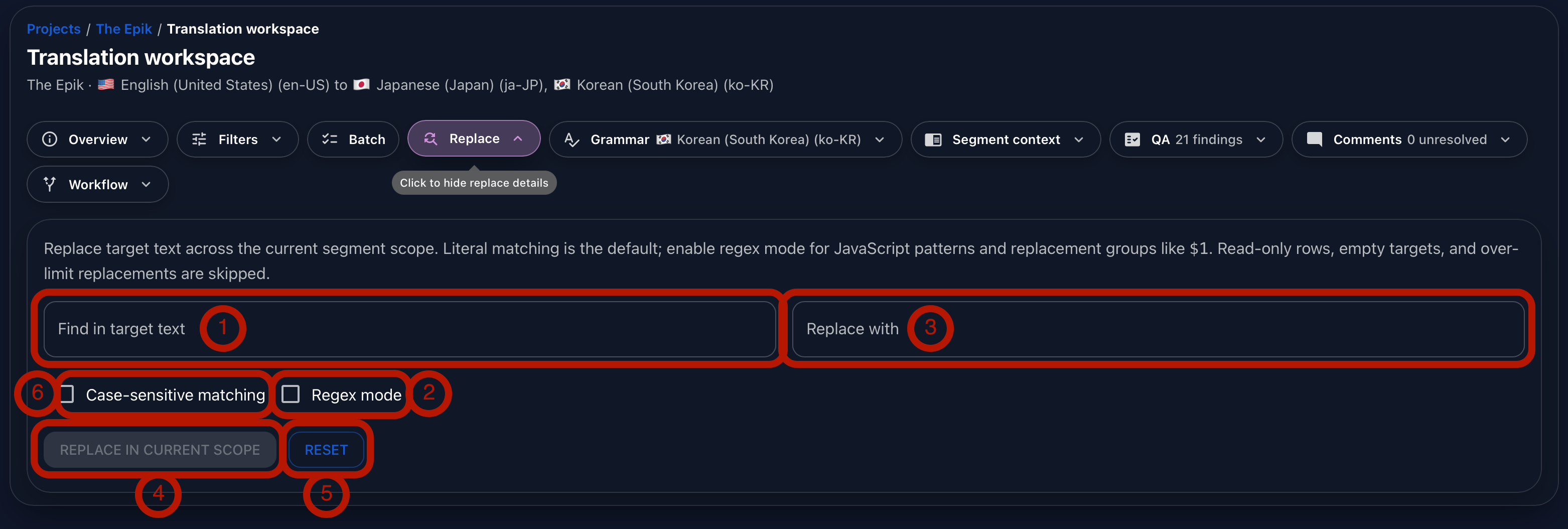
Replace is used to find and replace target text across the current working scope. Enter the text to find in the Find in Target Text field (1), then enter the replacement text in the Replace With field (3). To run the change, click Replace in Current Scope (4). To clear the fields and options, click Reset (5).
Regex mode (2) supports pattern-based replacement, while Strict Case Match (6) distinguishes between uppercase, lowercase, initial-capital, and mixed-case words.
Grammar
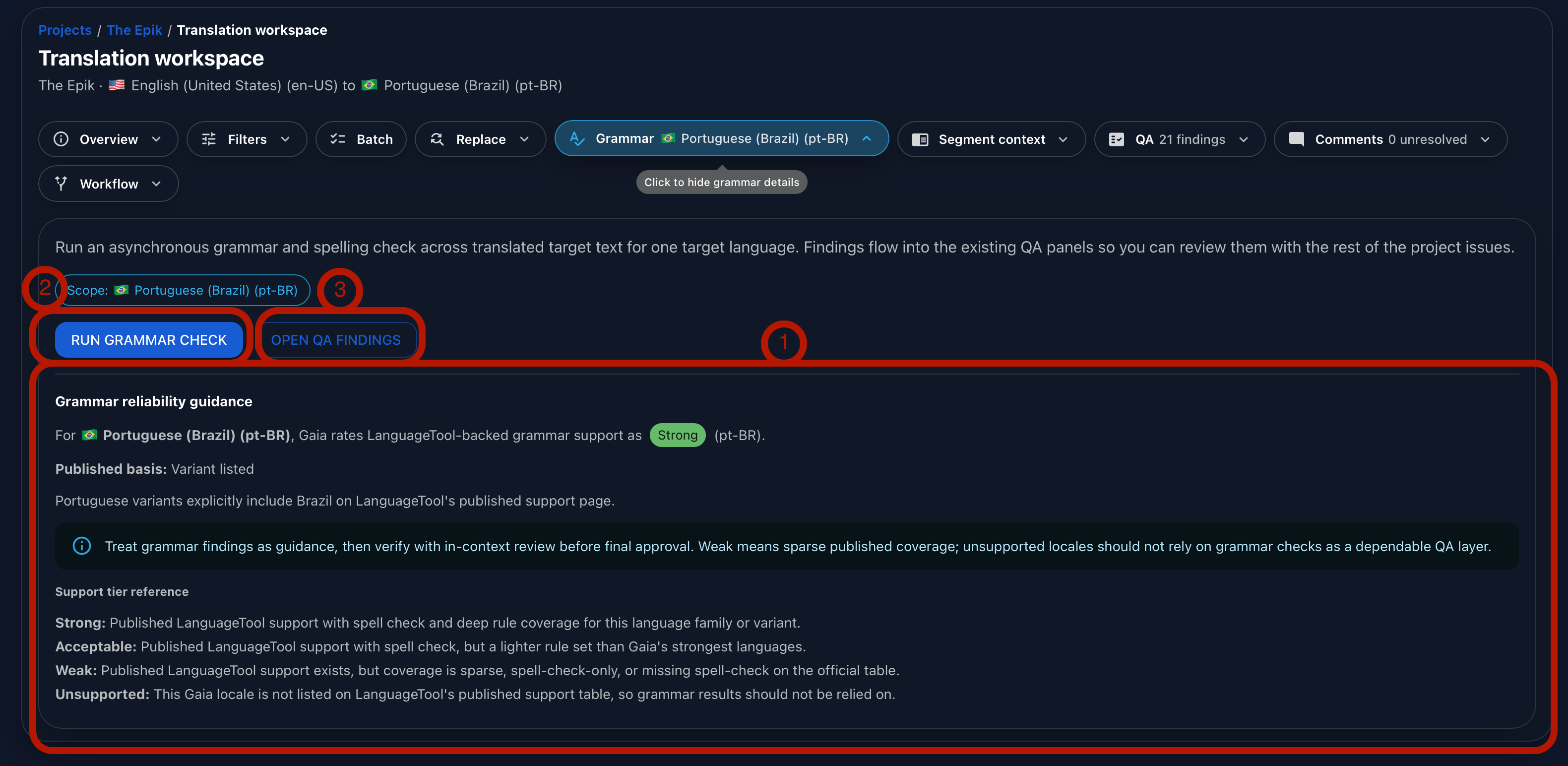
Gaia uses the free version of LanguageTool to perform asynchronous grammar checks. The level of support for each language is shown in the description (1), so users understand how much coverage to expect.
To start a grammar check, click Run Grammar Check (2). When Gaia finds grammar issues, they are added to the QA results. Users can then click Open QA Findings (3) to review them.
Segment Context
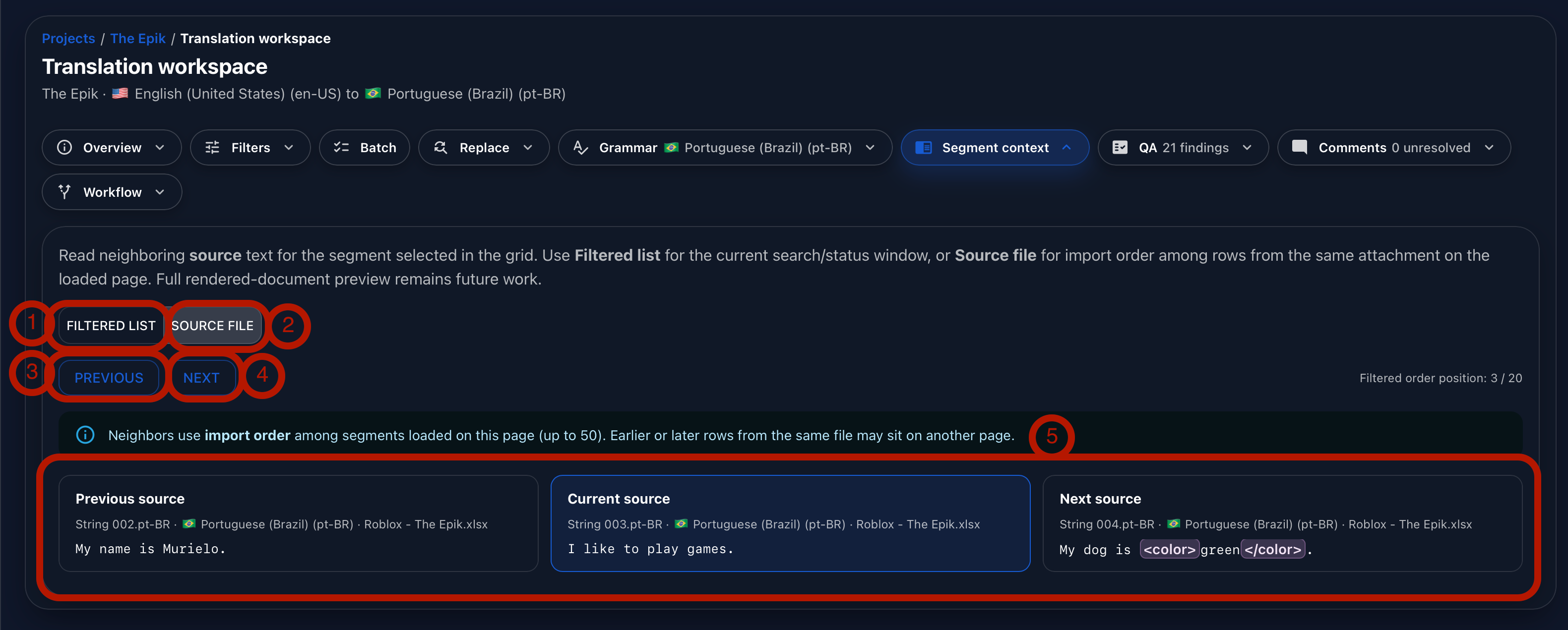
Segment context helps linguists understand how strings appear in sequence. This is especially important for dialogues, store descriptions, and content that will later be recorded by voice talent.
Users can navigate through the current filtered list of segments (1), or through the strings exactly as they appear in the source file (2). Previous (3) and Next (4) move through the file and display the neighboring segment (5).
QA
The QA panel displays the issues Gaia currently finds in the translation grid. Gaia can identify several issue types automatically:
- Character length issues, based on the limit imported with the file or, when no limit exists, the source text length.
- Punctuation mismatches between source and target text.
- Source text copied exactly into the target.
- Spelling and grammar issues found after running the grammar check.
- Number mismatches between source and target.
- Locale-specific number formatting issues.
- Missing opening or closing tags.
- Tag mismatches between source and target text.
- Glossary terms missing from the target text.
- Empty target text.
- Source changes made after translation work has already started.
Source changes are especially important. When a project owner edits source text, Gaia displays a QA alert and shows the number of changed words on the affected segment and on the Project Card as an aggregated value across all changed segments.
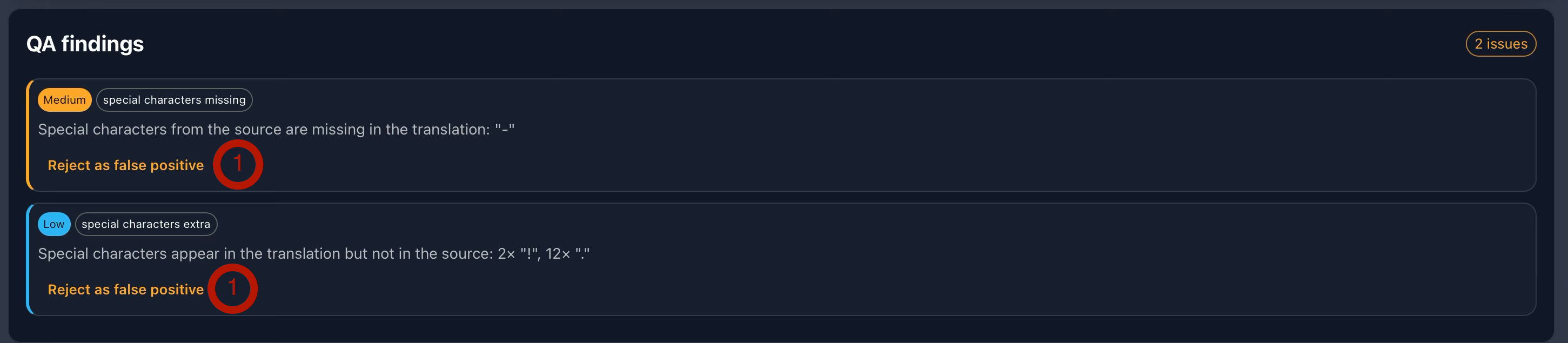
For every QA issue, users can reject the finding (1) when it is a false positive. In other words, even if Gaia detects something as a potential issue, the team can dismiss it when the context makes the warning acceptable.
Comments
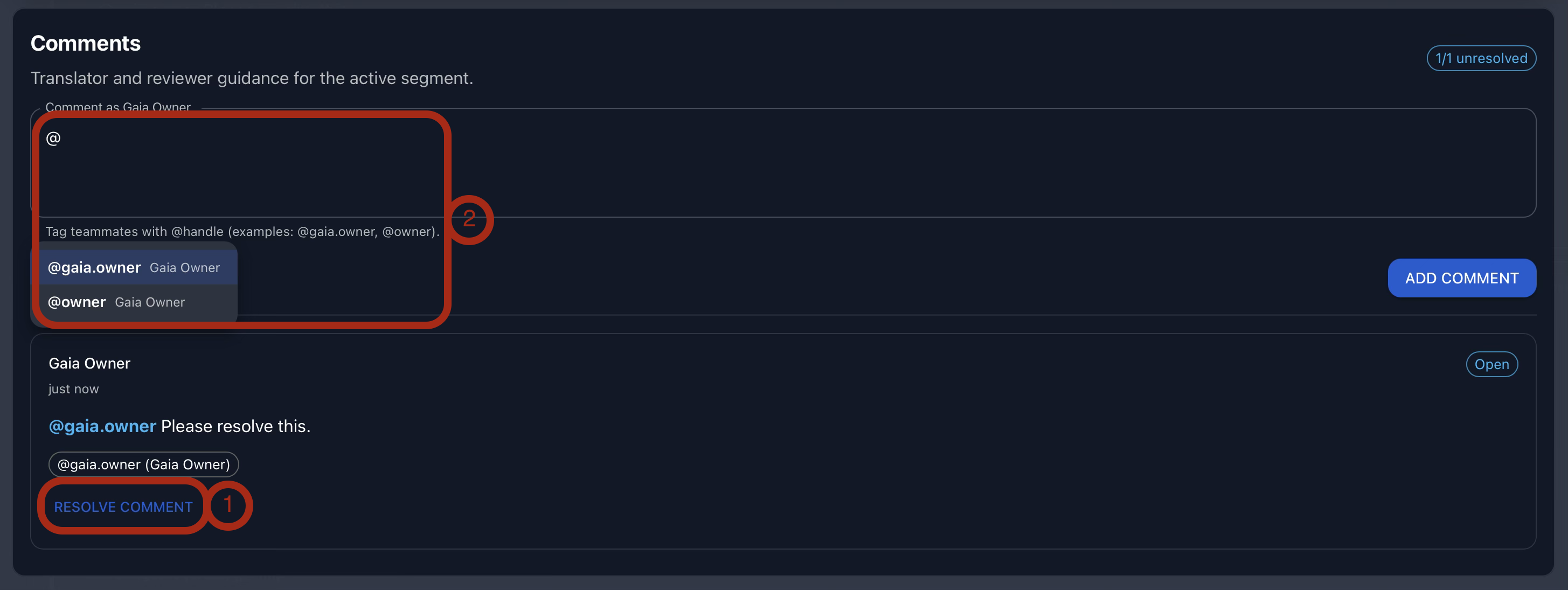
Comments let users add context, questions, and decisions directly to a segment. Project owners can resolve comments (1), and users can assign or tag project members by typing @ before the person's display name. Assigned users appear automatically as suggestions (2).
Workflow
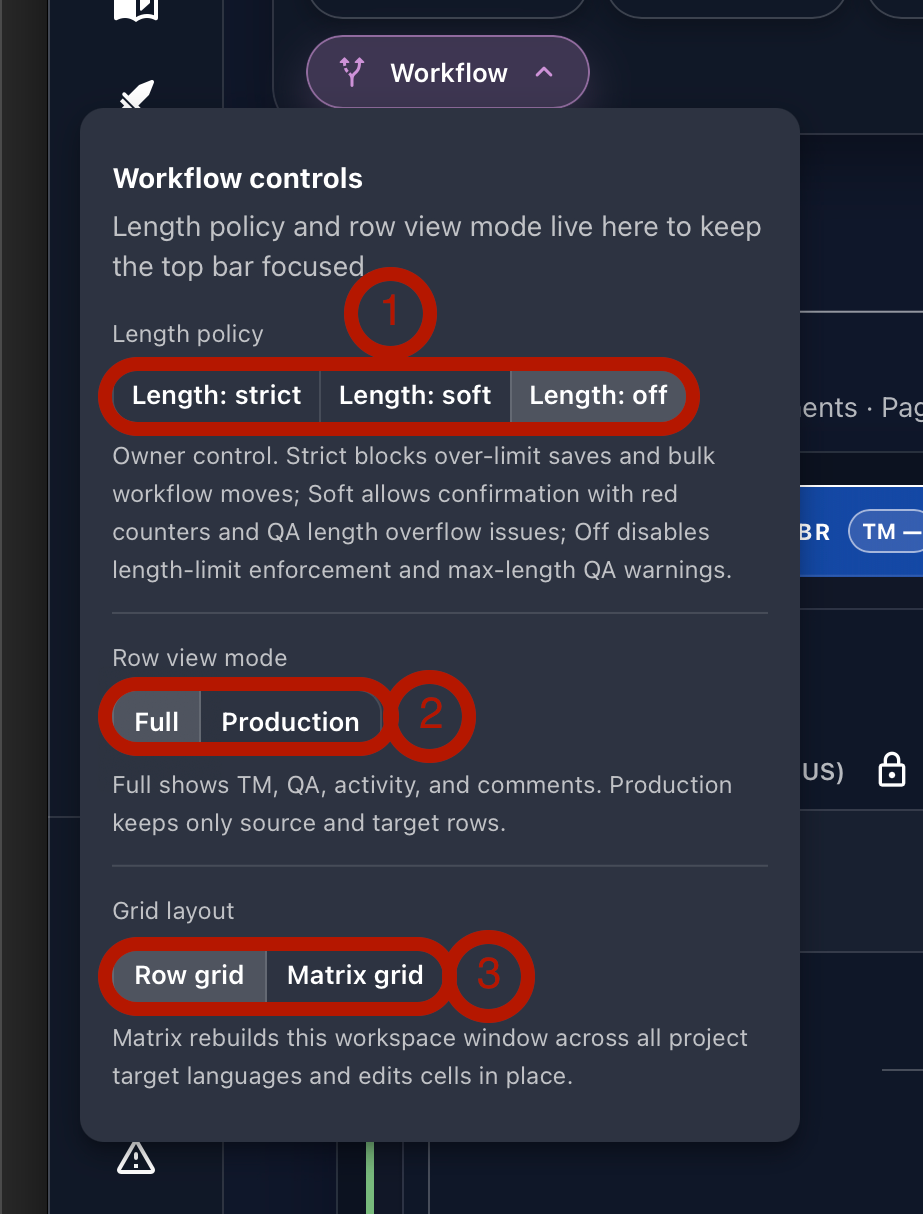
The Workflow menu includes three controls that shape how the grid behaves:
- Length: Strict, Soft, or Off (1). Strict prevents users from confirming segments that exceed the character limit. Soft allows confirmation but creates a QA alert. Off allows confirmation without a QA alert. In all three modes, target text and its character count turn red when the target exceeds the limit.
- Row view mode: Full or Production (2). Full mode shows the complete segment data, including TM results, segment key, context notes, glossary matches, dictionary, QA alerts, activity, and comments. Production mode shows only the source text, target text, and segment key.
- Grid layout: Row grid or Matrix grid (3). Row grid is Gaia's default view for one target language. Matrix grid displays all languages side by side.
Segment Top Bar
Each segment in Gaia has a top bar with operational controls and identifying information. It shows the string number from the source file (1) and the segment ID generated by Gaia. If the imported text file includes a base segment ID, Gaia uses that as the beginning of the string ID, then adds the language code at the end.
The top bar is clickable. Click once to collapse the segment, then click again to expand it. On the right side, the lock icon (2) prevents translators and reviewers from editing the segment. The version history icon (3) opens previous translations so users can review them and apply them if needed. The star icon (4) bookmarks the segment for later filtering.

Source and Target Text
The translation area follows Gaia's standard language pattern: flag, language name, country, and locale code (1). The source language also includes a lock icon (2). If the source is unlocked by a project owner, the source content can be edited directly.
When source content changes, Gaia displays a QA alert and shows how many words were affected on the modified segment (3). The Project Card also shows the aggregated number of changed words across all segments. This is important because changed source content may need to be translated again.
Gaia also shows the previous source and the current source for comparison (4). For English source text, hovering over many words displays dictionary information directly inside Gaia, without requiring an internet connection.
As users type the target translation, the character count below the target field updates automatically (5). Character limits can be read from a column during import or entered manually on the import page. If no character limit is provided, Gaia uses the source character count as the default limit.
Character limit behavior can be configured in three ways:
- Off: target text turns red when it exceeds the limit, but no QA alert is created.
- Soft: target text turns red and a QA alert is created.
- Strict: target text turns red, a QA alert is created, and confirmation buttons are disabled.
When the translation is finished, the user clicks the appropriate workflow button (6). Translators can confirm as translated. Reviewers can confirm as translated or reviewed. Owners can confirm as translated, reviewed, or approved. The names of these workflow steps can also be customized to match the team's process.
Confirmed segments go directly to the translation memory. Users can also open the translation history from the top-right icon (7) and revert to a previous translation at any time.

Translation Memory, Segment Keys, Context Notes, and Dictionary
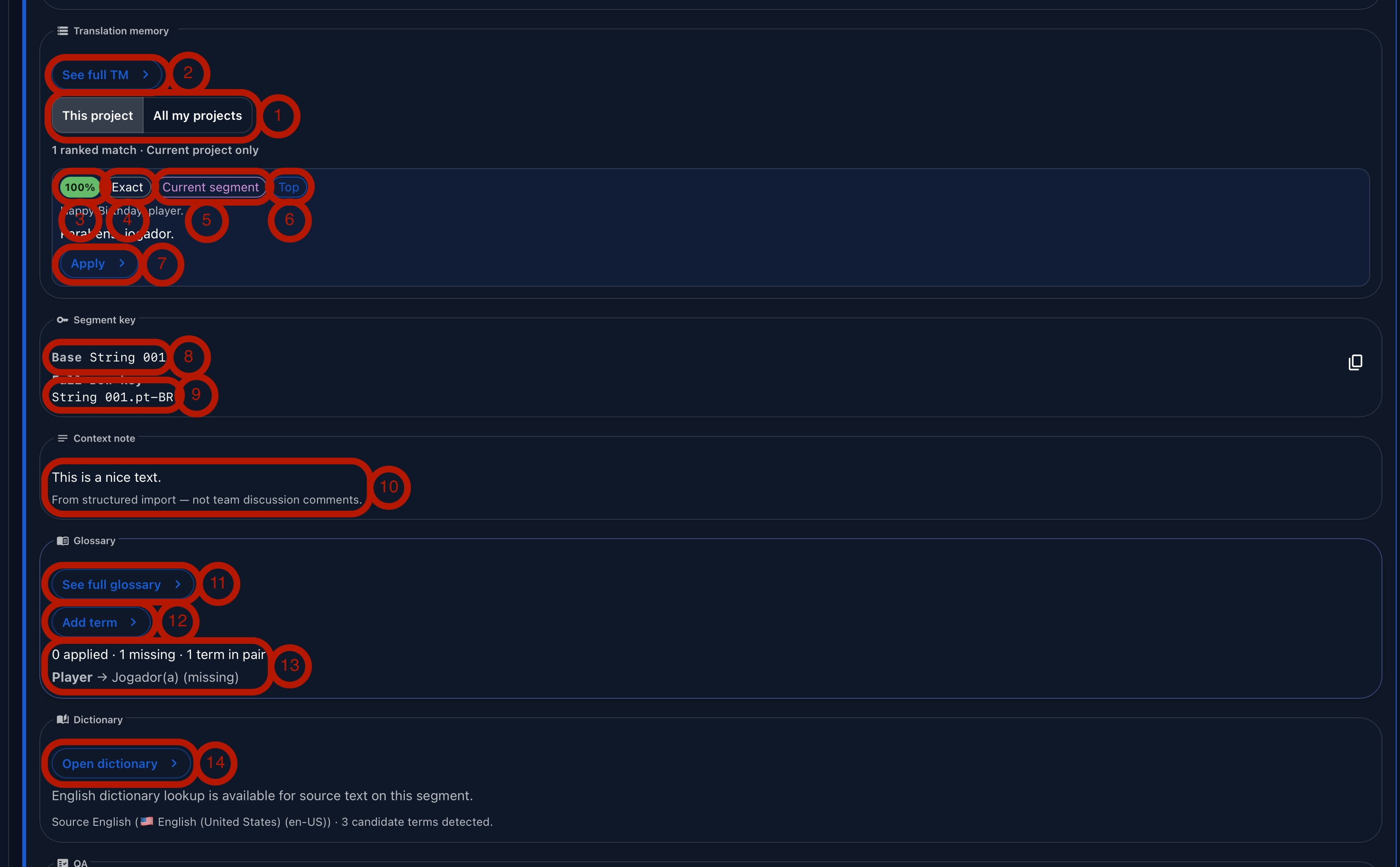
Below the translation area, Gaia displays translation memory results. Users can choose whether to see results from the current project's TM or all TMs they own (1). This is useful when translating products from the same franchise or content family, where similar context may appear across projects.
Clicking See Full TM (2) opens the translation memory directly. Each result includes chips that explain how the match was evaluated.
- 100% chip (3): the numeric score. Gaia normalizes both source strings by trimming them, lowercasing them, and collapsing internal spaces. It then measures similarity with Levenshtein edit distance and reports round((longer length - distance) / longer length * 100). A 100% score means the normalized source strings are identical under that calculation.
- Exact chip (4): the match type Gaia derives from the same score. A 100 score is exact, while anything below 100 is fuzzy. Exact matches are ranked above fuzzy matches.
- Current segment (5): the suggestion comes from the same segment row currently selected in the grid.
- Top (6): the row is the highest-ranked TM suggestion for this segment in the current scope.
For an exact hit, users usually see both 100% and Exact. Non-exact suggestions show a score such as 87% and the Fuzzy match type instead. When a suggestion is useful, clicking Apply copies it into the target text field.
The next block shows string ID information. The ID from the imported text file is called the Base ID (8), while the ID Gaia uses internally is called the Full row key (9). Gaia keeps these distinct because each target language has its own production string ID for each segment.
Gaia also displays context notes (10) imported from the source file. These notes can be added in a dedicated column to give linguists additional context.
In the glossary area, users can see the full glossary (11), add a term (12), and view glossary matches in the context of the current segment. If a required term is not used in the translation, Gaia displays a message (13). The dictionary section shows definitions for many English source terms when users click Open Dictionary (14).
Segment QA, Activity, and Comments
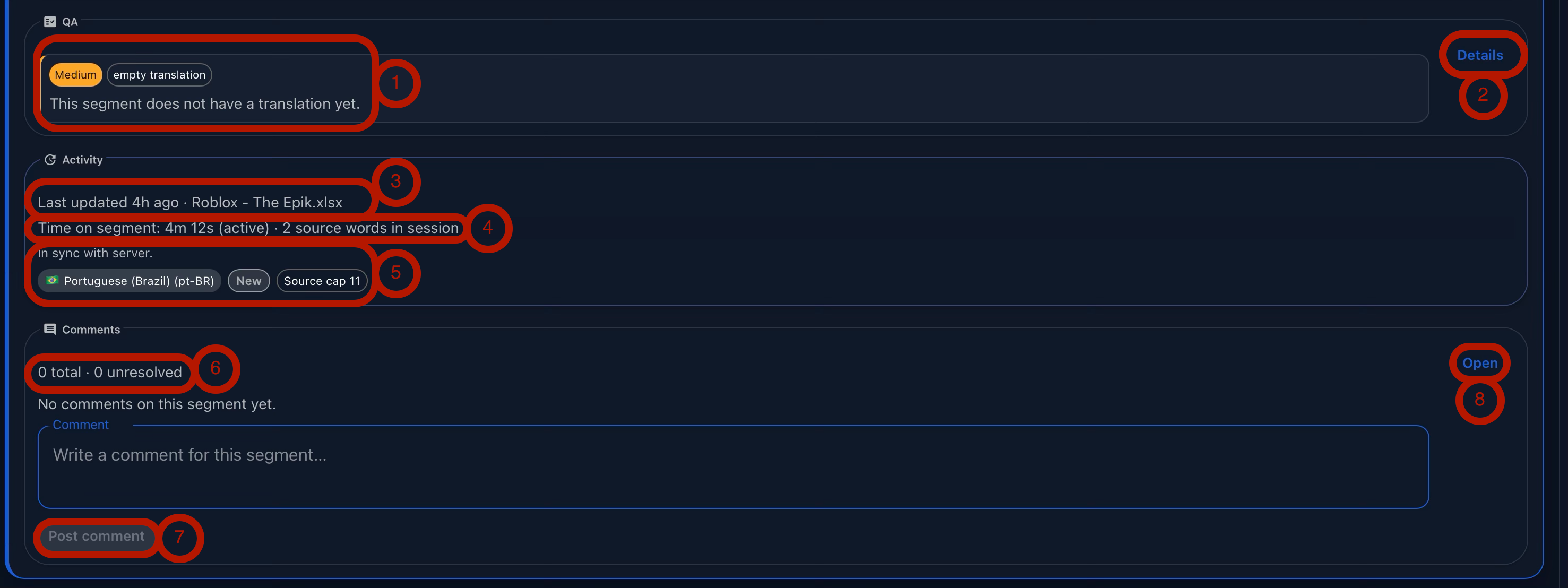
The first two QA findings for a segment appear directly in the grid (1). To see the full list of issues, users can click Details (2).
The activity block shows the last time the project was updated (3), followed by the time spent on the segment (4). Gaia logs time spent on each segment because this data is later used to calculate efficiency in the reports section. Efficiency is measured as the number of words processed, translated, reviewed, or approved per minute.
The activity block also shows the segment's server state, target language, workflow status, and source character limit (5).
The comments area lets users write segment-level comments. At the top, Gaia shows the total number of comments and the number of unresolved comments (6). To post a comment, write the message and click Post Comment (7). To view the full discussion, click Open (8), which displays the complete conversation in an overlay.
Conclusion
At Tomori, we believe these features form the foundation of an effective translation grid. They give linguists the structure they need to work efficiently, while giving project owners the control and visibility required to manage quality at scale.
Gaia is also designed to remain flexible. If your workflow requires a different behavior, a custom review process, or additional grid-level controls, we can adapt Gaia so the translation environment matches the way your team actually works.
Watch the Tutorial
Follow Tomori Systems on YouTube, Instagram, TikTok, and LinkedIn for more Gaia updates.