
A Detailed View of Gaia 3.0 Reports
In Gaia Tutorial 13 - Reports, we explored the Reports landing page and its project-level overview. This tutorial takes a closer look at the reports and supporting tools available in Gaia 3.0, from activity history and quality checks to productivity, project health, cost estimates, and workflow changes.
Together, these views help project owners connect the numbers to the work behind them, choose where to investigate, and give teams the information they need to move forward.
Activity Log
The Activity Log records project and segment changes so you can understand what happened, who performed the action, and when. Use Actor contains (1) to filter by the person responsible for an action. The action dropdown (2) narrows the results to a particular action type, including project-level and segment-level changes.
In the example below, the owner updated the project’s length-enforcement settings. The log row (4) shows the timestamp in UTC, the action, the actor, and a summary of the change. Select Export CSV (3) to download the log for further review.

Import Log
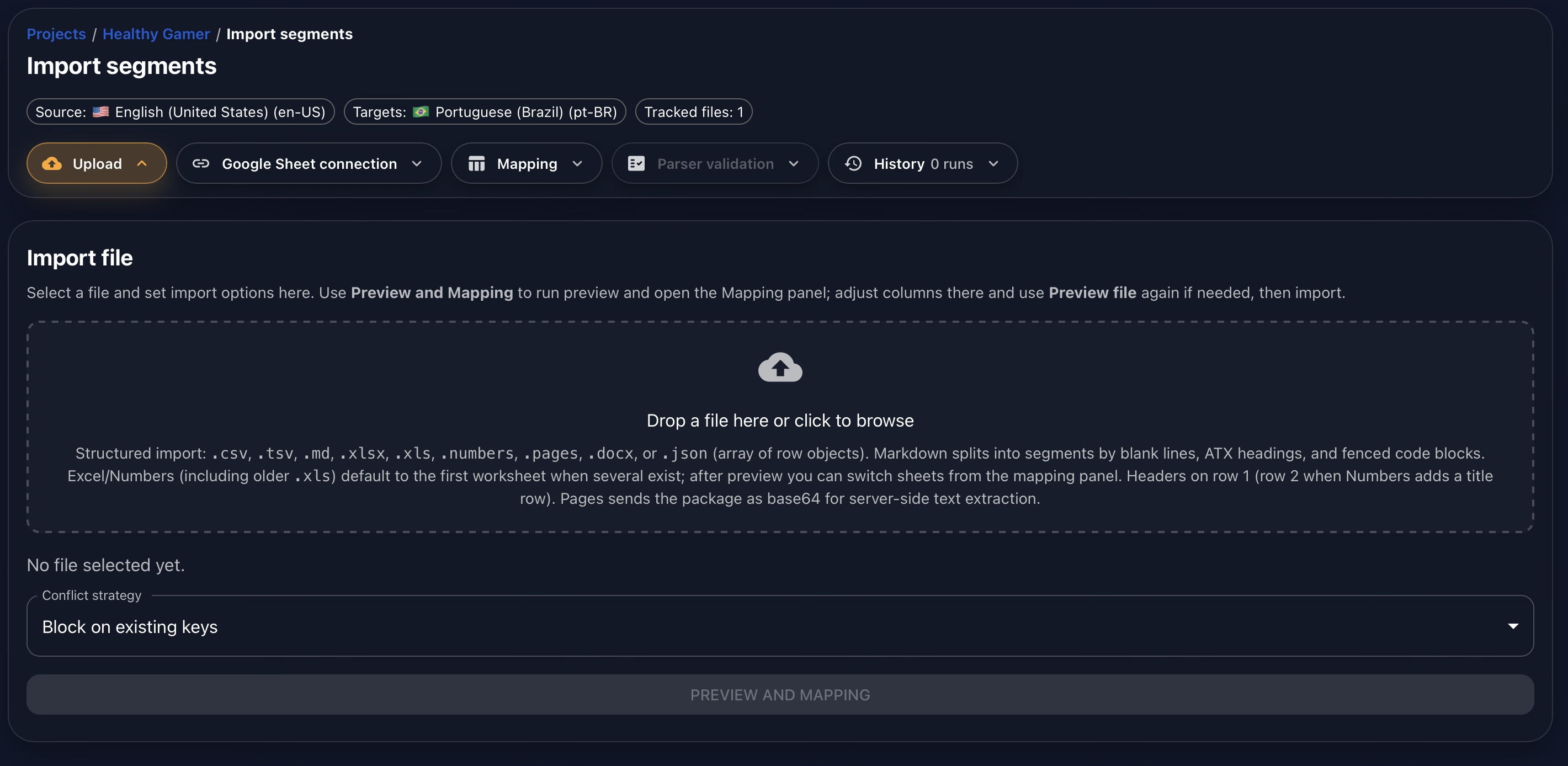
The import area brings file intake and import history together. It is the same workspace used when you first add content to a project, with controls for uploading files, reviewing mappings, validating the input, and checking previous runs.
Use History / runs to review recorded imports. To import an updated file, return to Upload, choose the file, and review the mapping and conflict strategy before proceeding. This keeps re-import decisions connected to the existing project content.
API & Webhooks
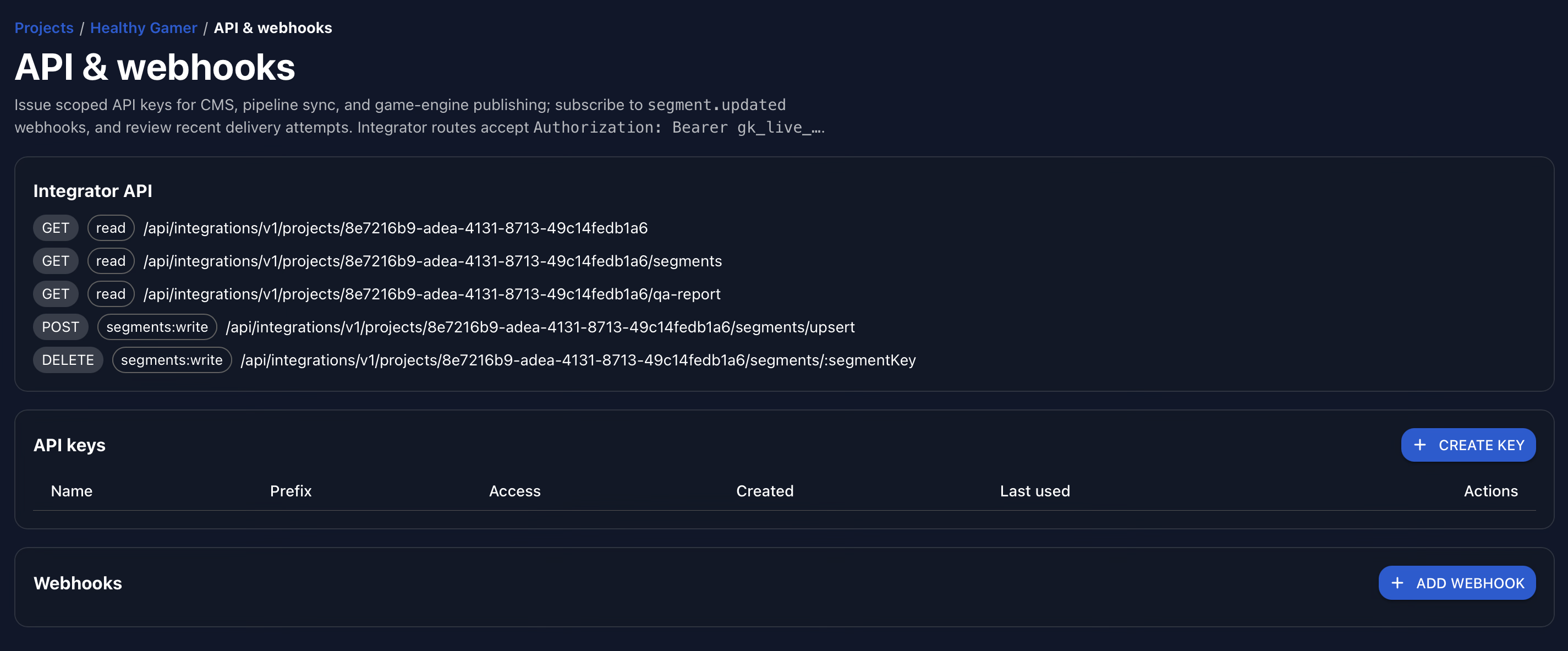
The API & webhooks area provides a view of the project’s integration endpoints, API keys, and webhooks. The screen includes scoped read and segment-write operations, key management, and webhook configuration for connecting Gaia with other systems.
As customizable software, Gaia can support integrations with content management systems, build pipelines, game engines, and other applications according to the workflow implemented for your organization. Review the access scope of each key and the purpose of each connection when managing an integration.
QA Report - Overview
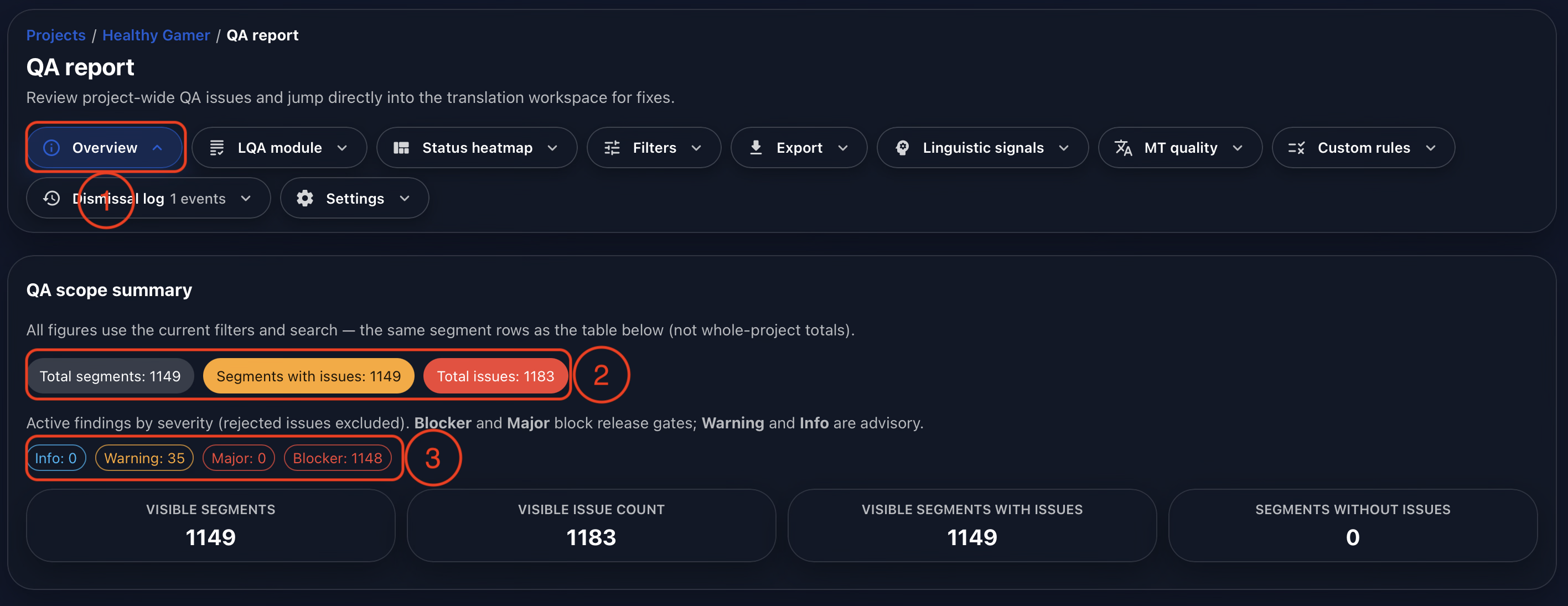
The QA Report provides a detailed view of the issues currently found in the project. Open Overview (1) to see the segment count, segments with issues, and total issue count (2). These figures follow the current filters and search, so they describe the report scope rather than always representing the entire project.
The severity breakdown (3) distinguishes Info, Warning, Major, and Blocker findings. In the configuration shown, Major and Blocker findings block release gates, while Warning and Info are advisory. Rejected findings are excluded from the active severity counts. Use the configured rules and delivery requirements to interpret what needs resolution.
QA Report - LQA Module
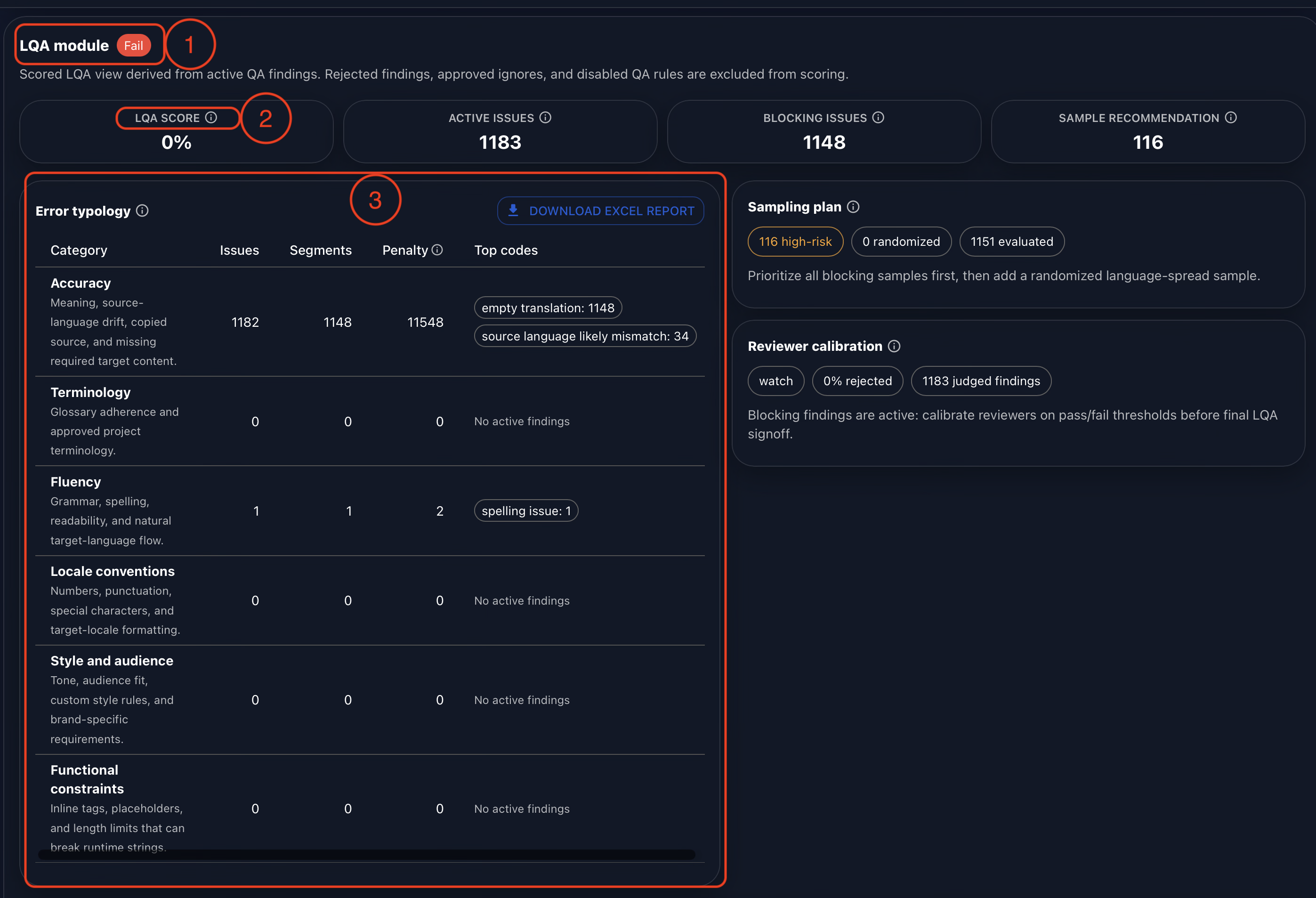
The LQA module organizes automated QA findings into a structured linguistic quality assessment. This deterministic, rules-based assessment gives reviewers an initial picture of the project before human evaluation. Its score reflects the configured checks and penalties; linguistic judgment remains essential when assessing the content.
The status at the top (1) shows whether the assessment passes or fails. Information icons (2) explain calculations, while the error typology (3) groups findings into six dimensions:
- Accuracy: meaning-related checks, source-language drift, copied source, and missing required target content.
- Terminology: glossary adherence and approved project terminology.
- Fluency: grammar, spelling, readability, and target-language flow signals.
- Locale conventions: numbers, punctuation, special characters, and locale-specific formatting.
- Style and audience: tone, audience fit, custom style rules, and brand requirements.
- Functional constraints: inline tags, placeholders, and length limits that affect runtime strings.
Weights, penalties, and assessment criteria should reflect the project’s requirements. Review the available configuration and calculation explanations when interpreting the final score. The sampling and reviewer-calibration panels help teams plan their next review steps.
Supplier and Language Evaluation
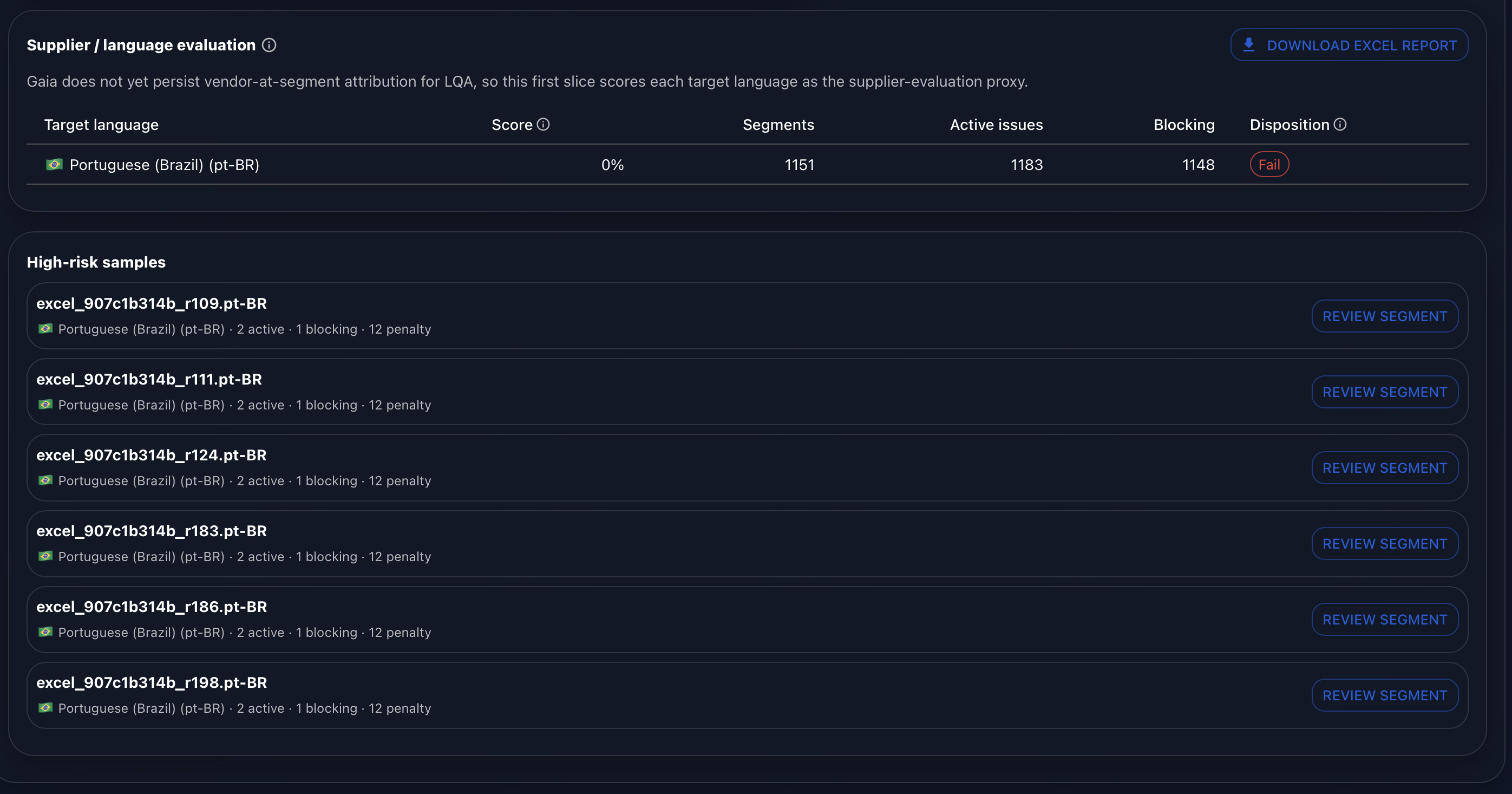
The same section includes a supplier / language evaluation view with scores, segment counts, active issues, blocking findings, and high-risk samples. In the version shown, Gaia does not yet persist vendor-at-segment attribution for LQA, so each target language serves as a supplier-evaluation proxy. Read this as a language-level quality signal rather than an individual vendor rating.
QA Report - Status Heatmap
The status heatmap shows how strings are distributed across workflow stages, with additional columns for source review and QA risk. Switch between language and source-file views to compare where the work stands. The QA-risk column counts segments with open QA findings, helping teams see the relationship between workflow progress and outstanding checks.

QA Report - Filters and Export
Use the search field (1) to find relevant content, then narrow the findings by severity (2), issue code (3), and target language (4). Combining these filters helps reviewers work through a focused set of issues.

Open Export and select Export CSV to download the findings that match the current filter scope. This provides a portable record for follow-up or further analysis.

QA Report - Linguistic Signals
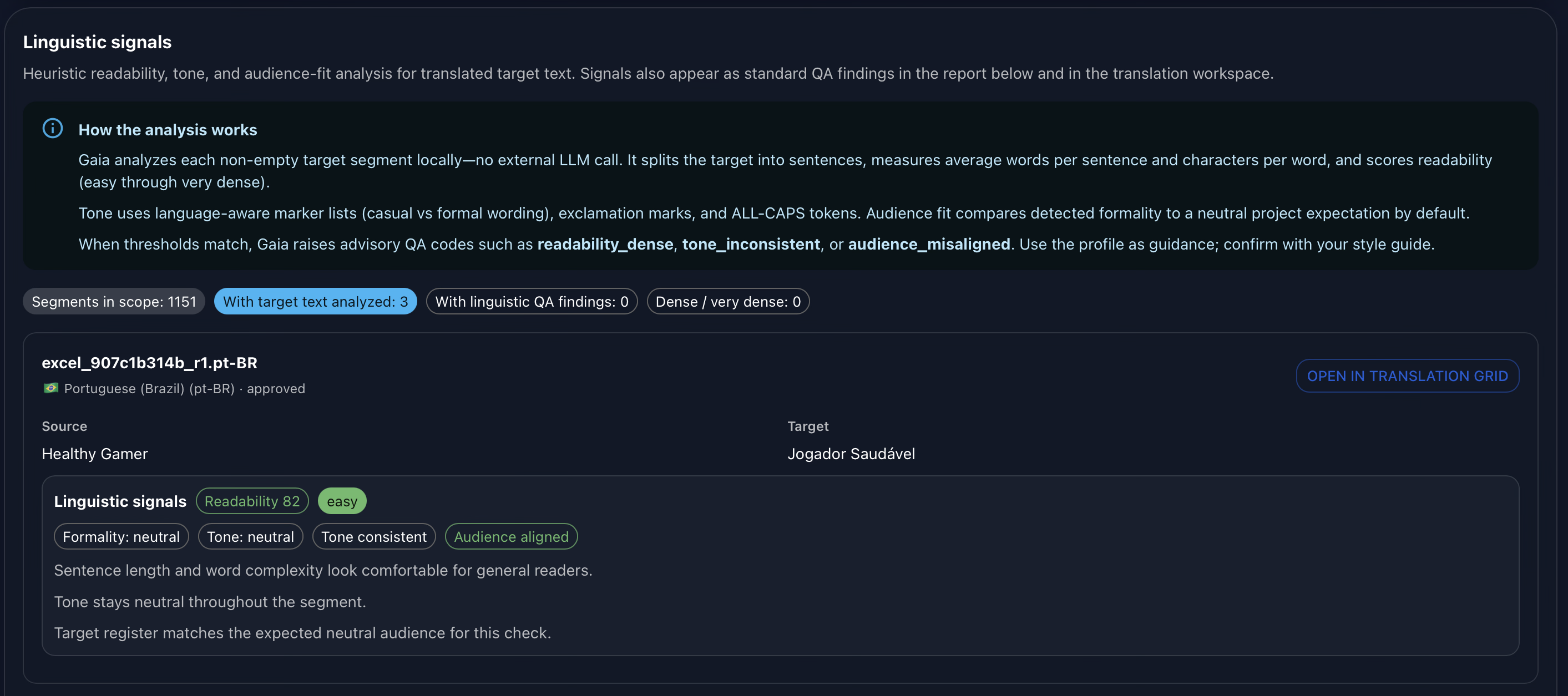
Linguistic signals use local heuristic rules to analyze non-empty target segments without an external LLM call. Gaia splits the target text into sentences, measures average words per sentence and characters per word, and estimates readability from easy through very dense.
Tone analysis uses language-aware markers such as casual or formal wording, exclamation marks, and all-caps tokens. Audience fit compares the detected formality with a neutral project expectation by default.
When thresholds are met, Gaia raises advisory QA codes such as readability_dense, tone_inconsistent, or audience_misaligned. These signals guide further review. Linguists should interpret them alongside the intended audience, context, and project style guide.
QA Report - MT Quality
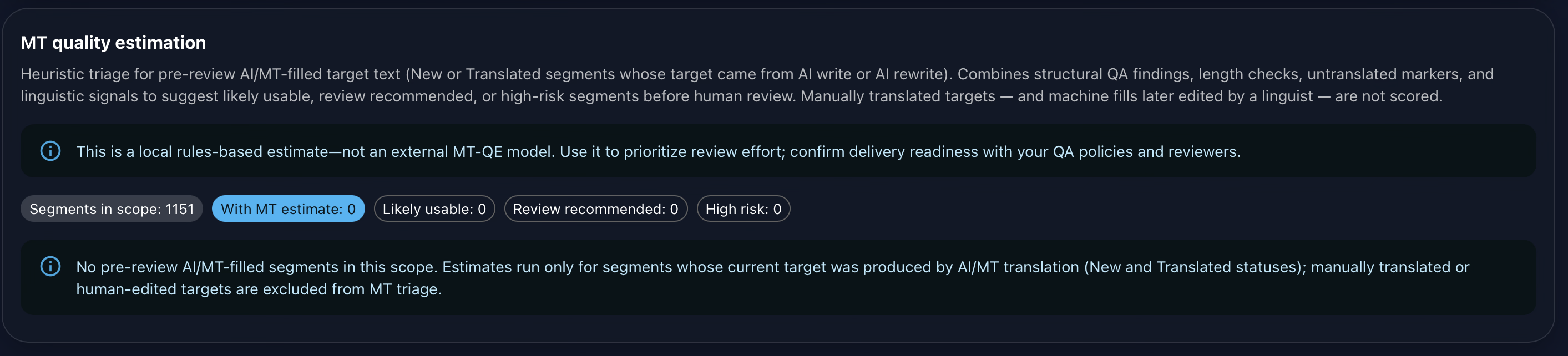
MT quality estimation provides rules-based triage for eligible, unreviewed AI- or machine-translated targets. It combines structural QA findings, length checks, untranslated markers, and linguistic signals to classify segments as likely usable, review recommended, or high risk.
This is a local heuristic estimate rather than an external MT quality-estimation model. Manually translated targets and machine fills later edited by a linguist are excluded from this triage. Use the results to prioritize review effort and confirm delivery readiness through your normal QA process.
QA Report - Custom QA Rule Builder
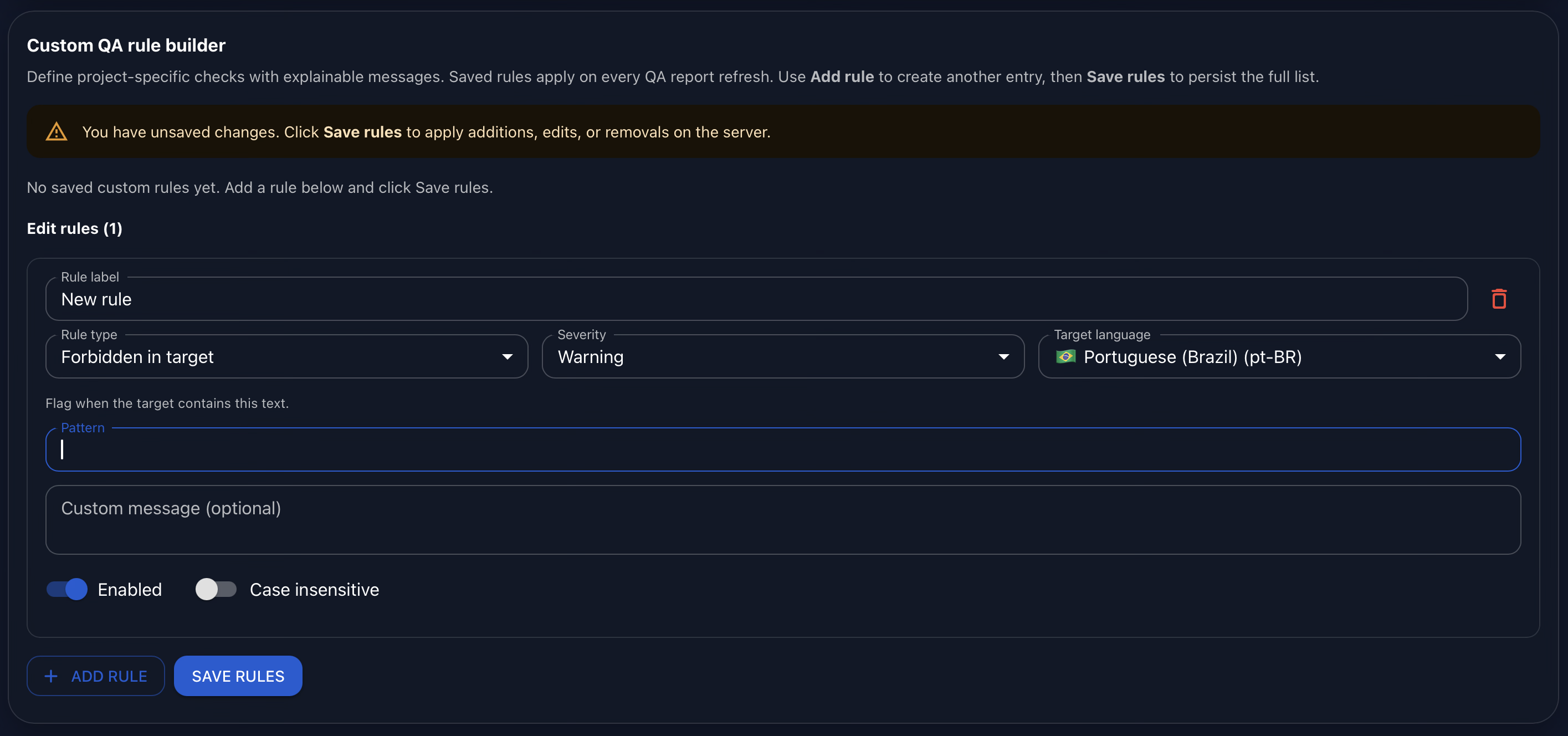
Custom rules let teams turn project-specific requirements into repeatable checks. Enter a rule label, select its type, and choose the severity and target language. The available rule types include:
- Forbidden in target
- Required in target
- Target must match regex
- Target must not match regex
- Source trigger → target required
Enter the text or regular expression to check in the Pattern field. Add an optional message explaining the finding to the reviewer, then configure whether the rule is enabled and whether matching is case-insensitive. Use Add rule for additional entries and Save rules to persist the changes. Saved rules apply when the QA report refreshes.
QA Report - Dismissal Log
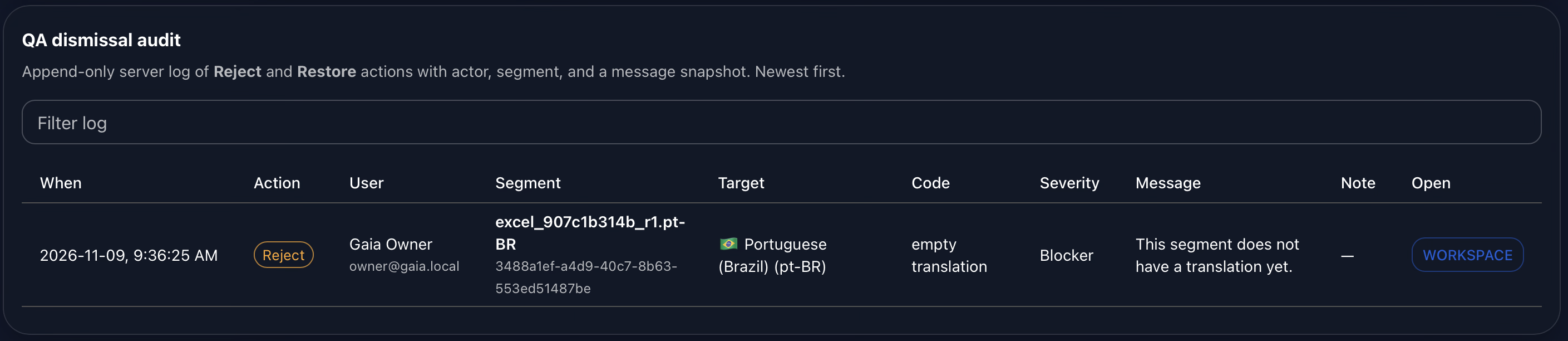
When a reviewer rejects a finding as a false positive, Gaia records the action in the QA dismissal audit. The log preserves the user, segment, target language, issue code, severity, and a snapshot of the message. Restore actions are also recorded, supporting later review and reassessment.
QA Report - Settings
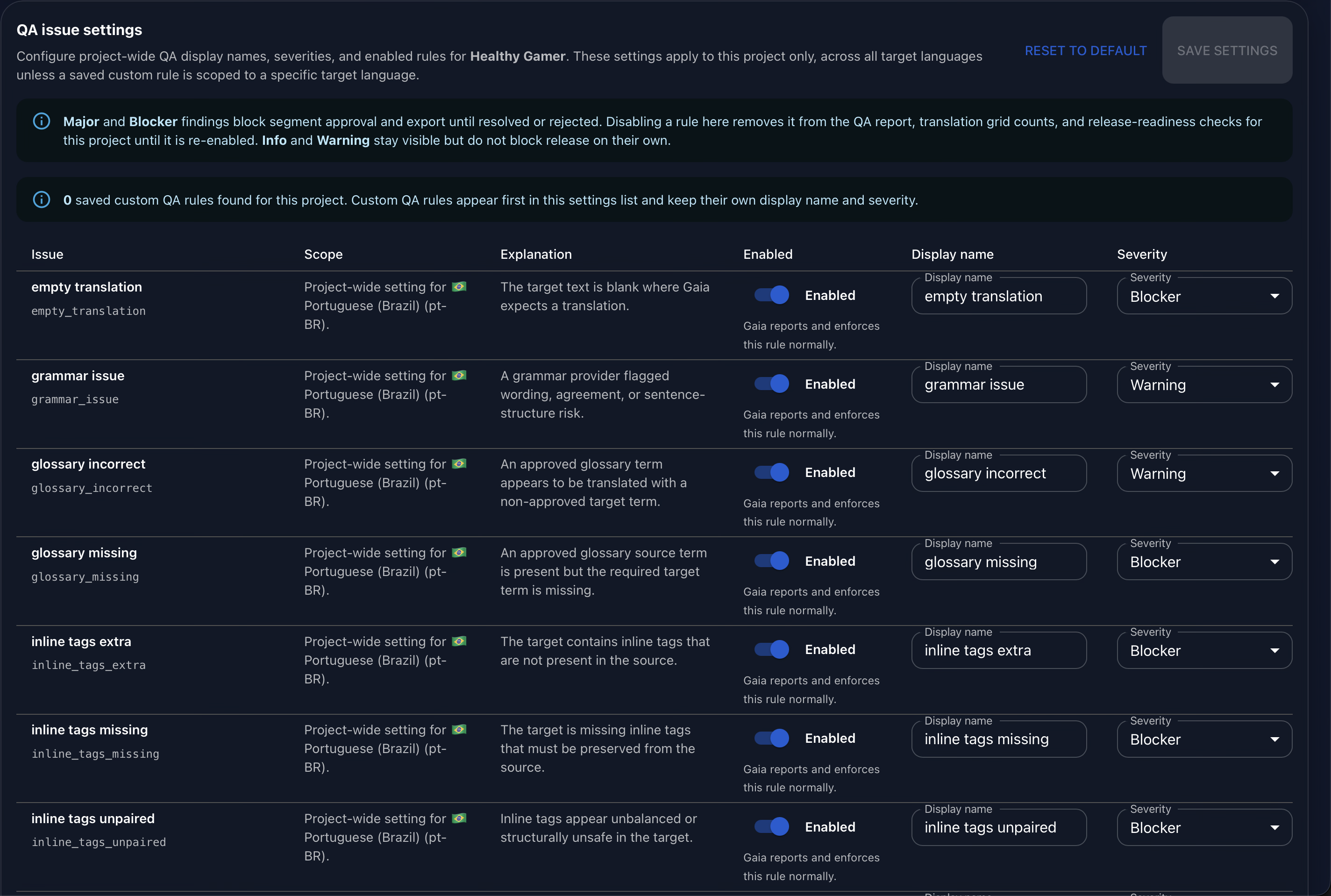
QA settings let project owners enable or disable available checks and configure their display names and severity. The settings apply to the project across target languages unless a check is scoped more narrowly.
Review these choices against the delivery requirements, then save the settings. Enabling the relevant checks and assigning meaningful severity levels helps the report reflect the project’s priorities.
Productivity Report - Overview
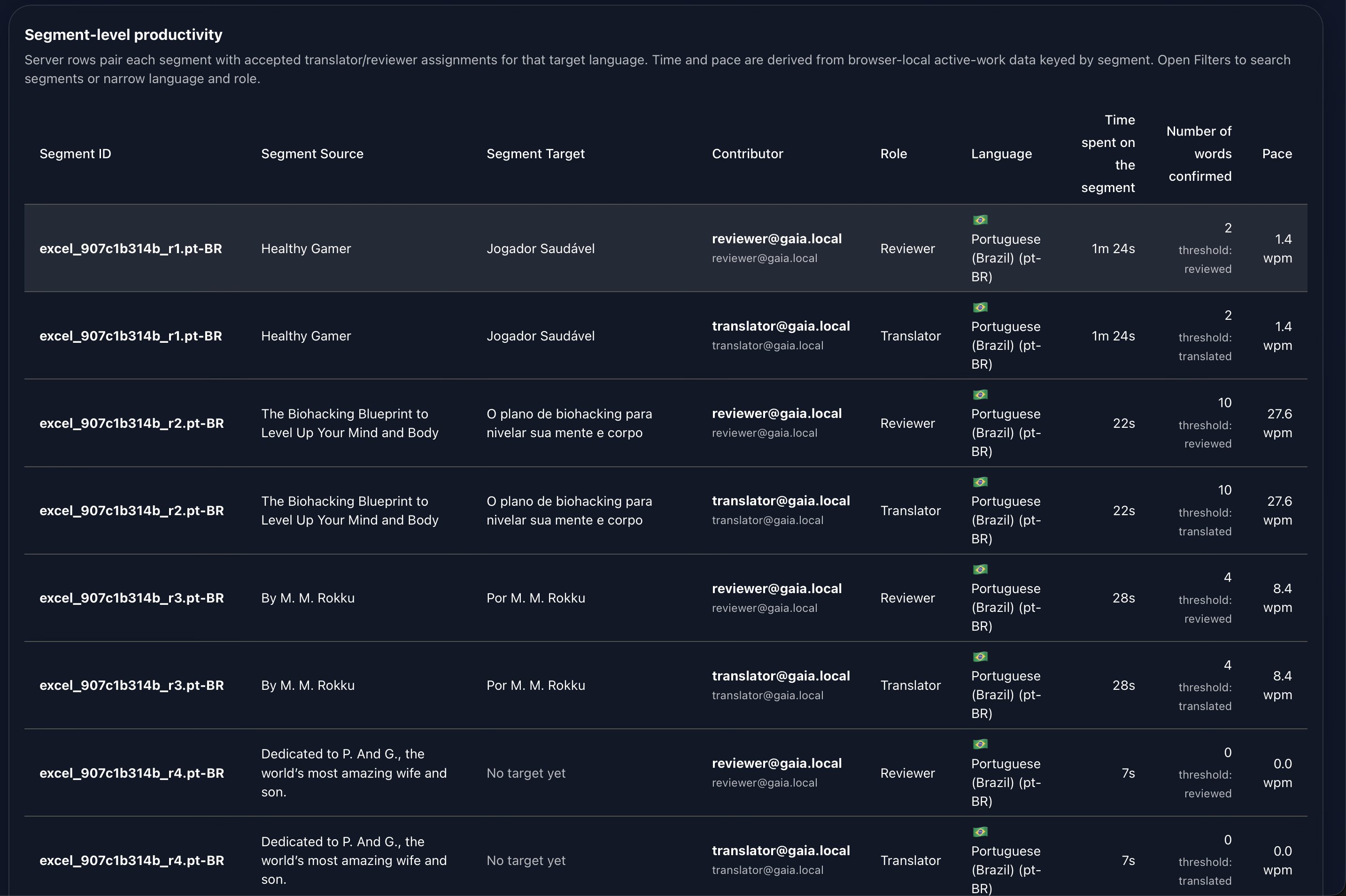
The productivity report shows segment-level pace in words per minute. It helps project owners compare progress and identify where a language team may benefit from support. Read the pace alongside the scope of the work, the workflow role, and the recorded time.
Each row connects a segment to an accepted assignment for its target language. The table includes:
- Segment ID: the segment key in the project.
- Segment Source: the source text used for word-count calculations.
- Segment Target: the current target text, or “No target yet” when empty.
- Contributor: the accepted assignment’s display name and email.
- Role: the assignment scope, such as Translator or Reviewer.
- Language: the target language shared by the assignment and the segment.
- Time spent: browser-local active-work time tracked for the segment.
- Number of words confirmed: role-scoped confirmed source words, with the workflow threshold shown beside the count.
- Pace: confirmed words divided by active minutes. Rows without tracked active time do not have a calculated pace.
Pace alone does not establish quality or explain differences in output. Consider content complexity, context, role, and the amount of recorded time before deciding what support is needed.
Project Health Diagnostics
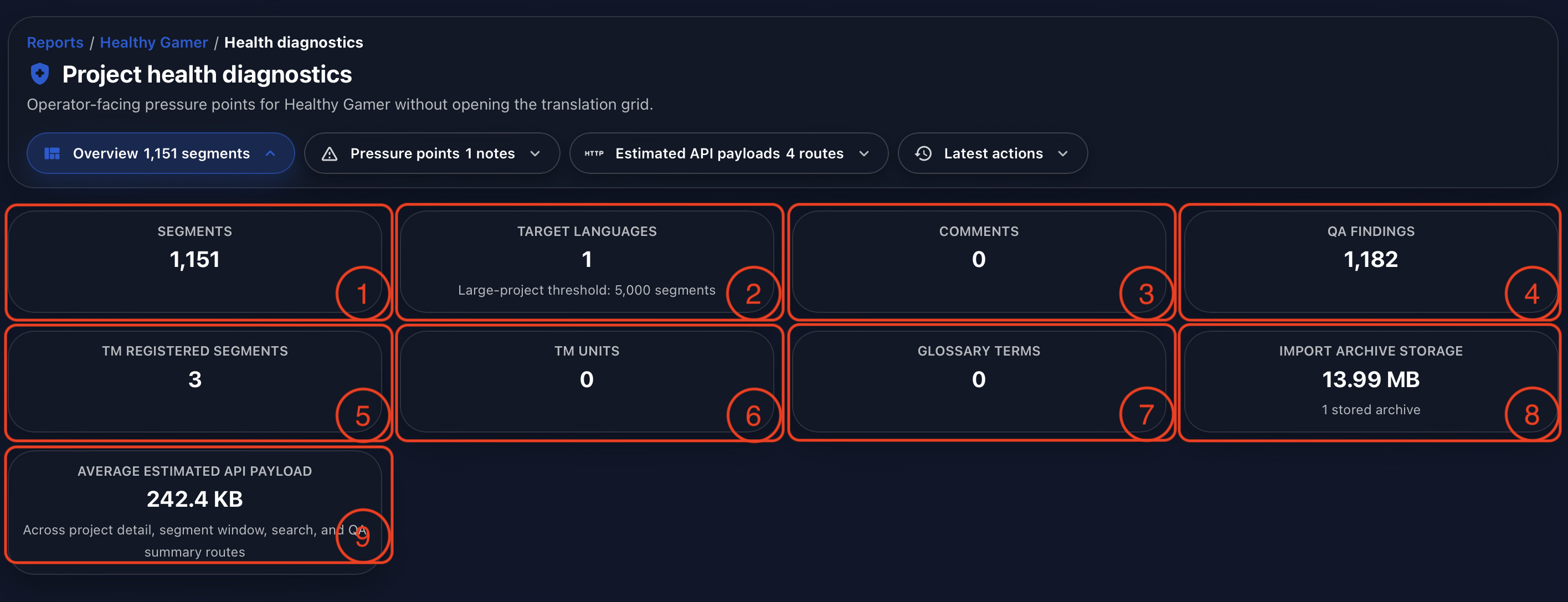
Project Health Diagnostics helps operational owners investigate data volume and likely performance pressure without opening the translation grid. The Overview shows:
- Project segments (1).
- Target languages and the displayed large-project segment threshold (2).
- Comments (3).
- QA findings (4).
- TM-registered segments (5).
- Translation-memory units (6).
- Glossary terms (7).
- Import archive storage (8).
- Average estimated API payload across the displayed routes (9).
Pressure Points
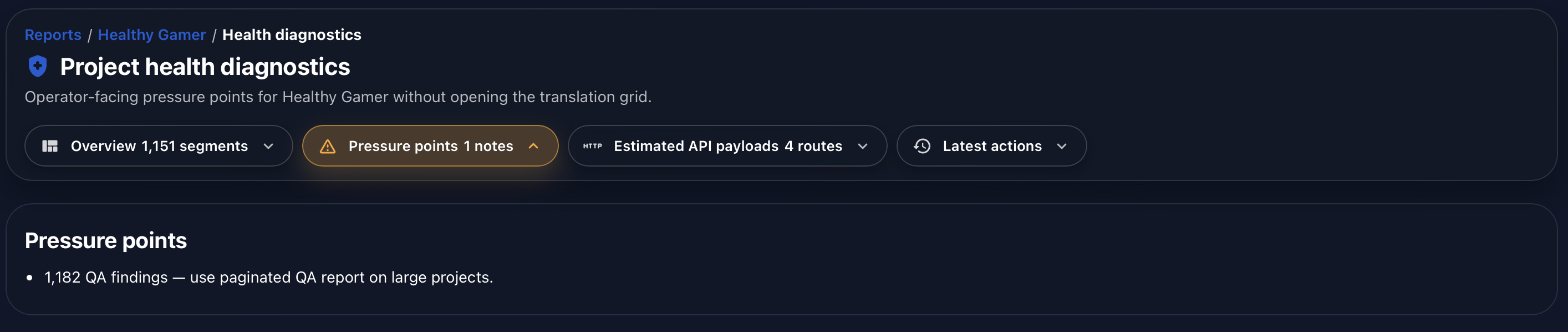
Pressure points highlight conditions worth investigating. In this example, Gaia flags 1,182 QA findings and recommends using the paginated QA report on large projects. This is a diagnostic lead for investigation rather than proof of the cause of any slowdown.
Estimated API Payloads
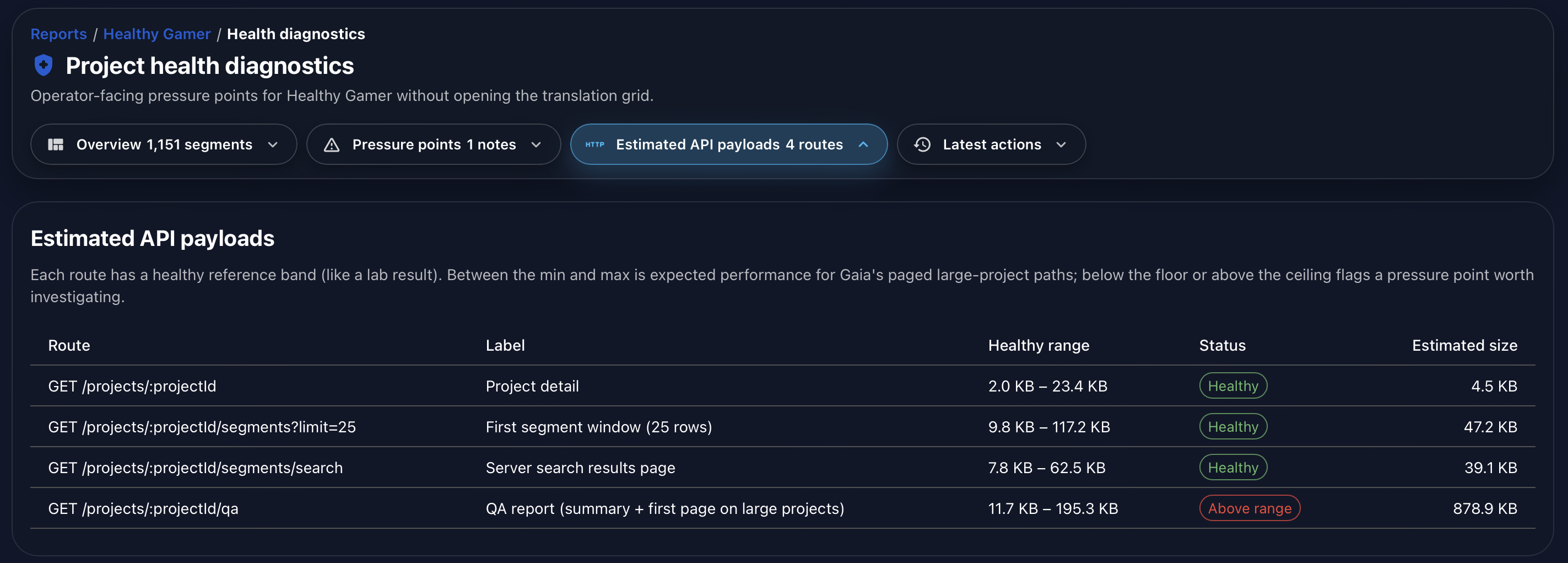
The Estimated API payloads view compares each route’s estimated response size with a reference range. Here, the QA-report route is above range at 878.9 KB, while the other listed routes remain within their healthy bands. This supports the earlier recommendation to investigate the volume of QA data.
Latest Actions
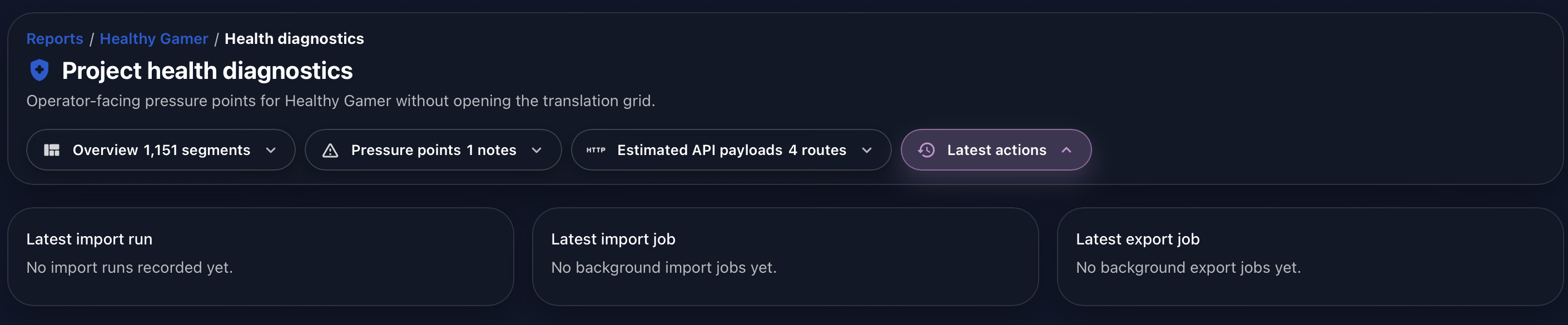
Latest actions shows the latest import run, import job, and export job when records are available. These details can help connect recent data operations with a change in project behavior. The example below has no recorded runs or background jobs yet.
Quote Estimate
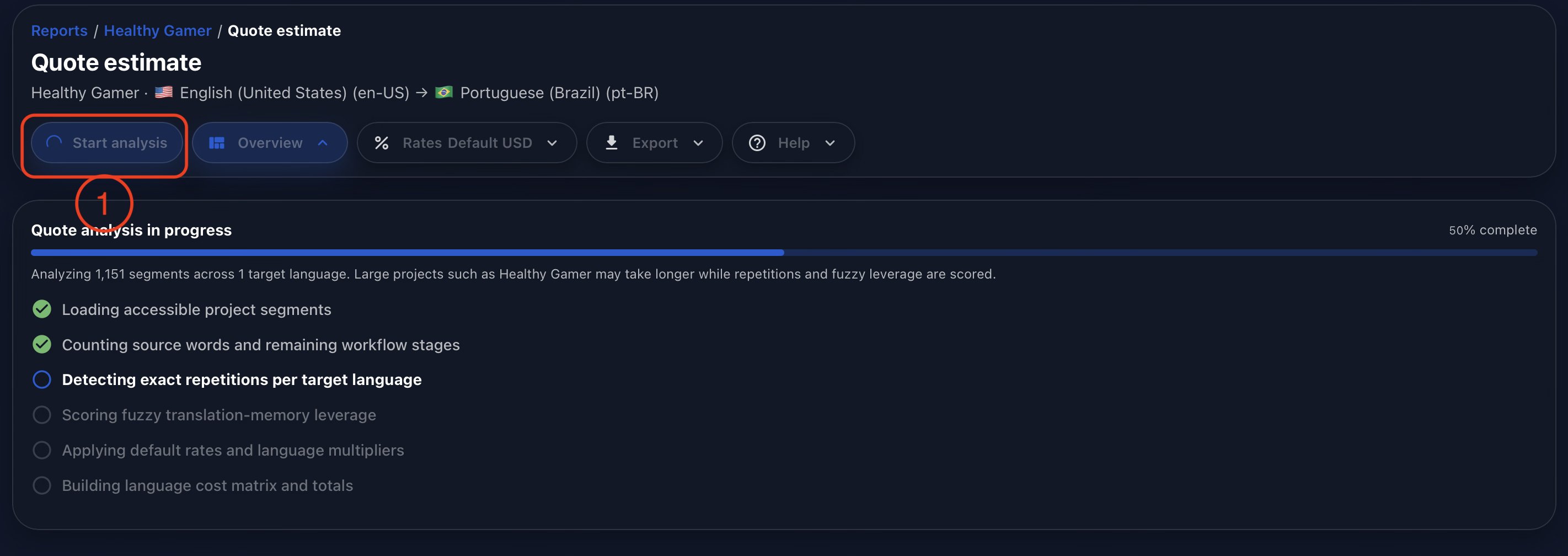
Select Start analysis (1) to generate a planning estimate for the remaining project work. Gaia loads accessible segments, counts source words and remaining workflow stages, identifies repetitions, scores fuzzy leverage, applies rates and language multipliers, and builds the language cost matrix. Progress is shown as each step runs.
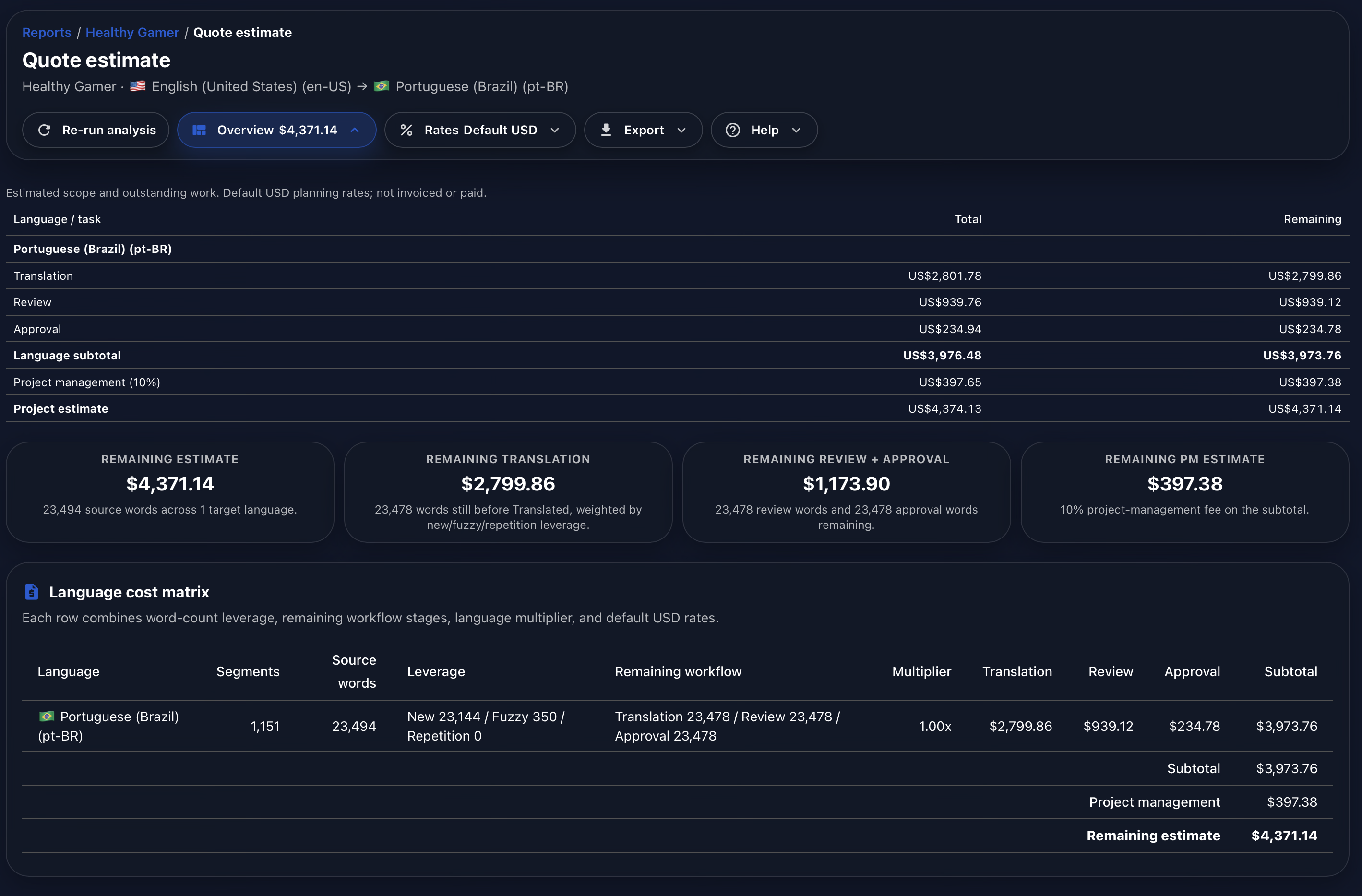
Once analysis completes, Overview separates the total estimate from the remaining cost. Translation, review, approval, and project management appear alongside a language cost matrix, helping project owners understand how the estimate is assembled.
Rates and Export
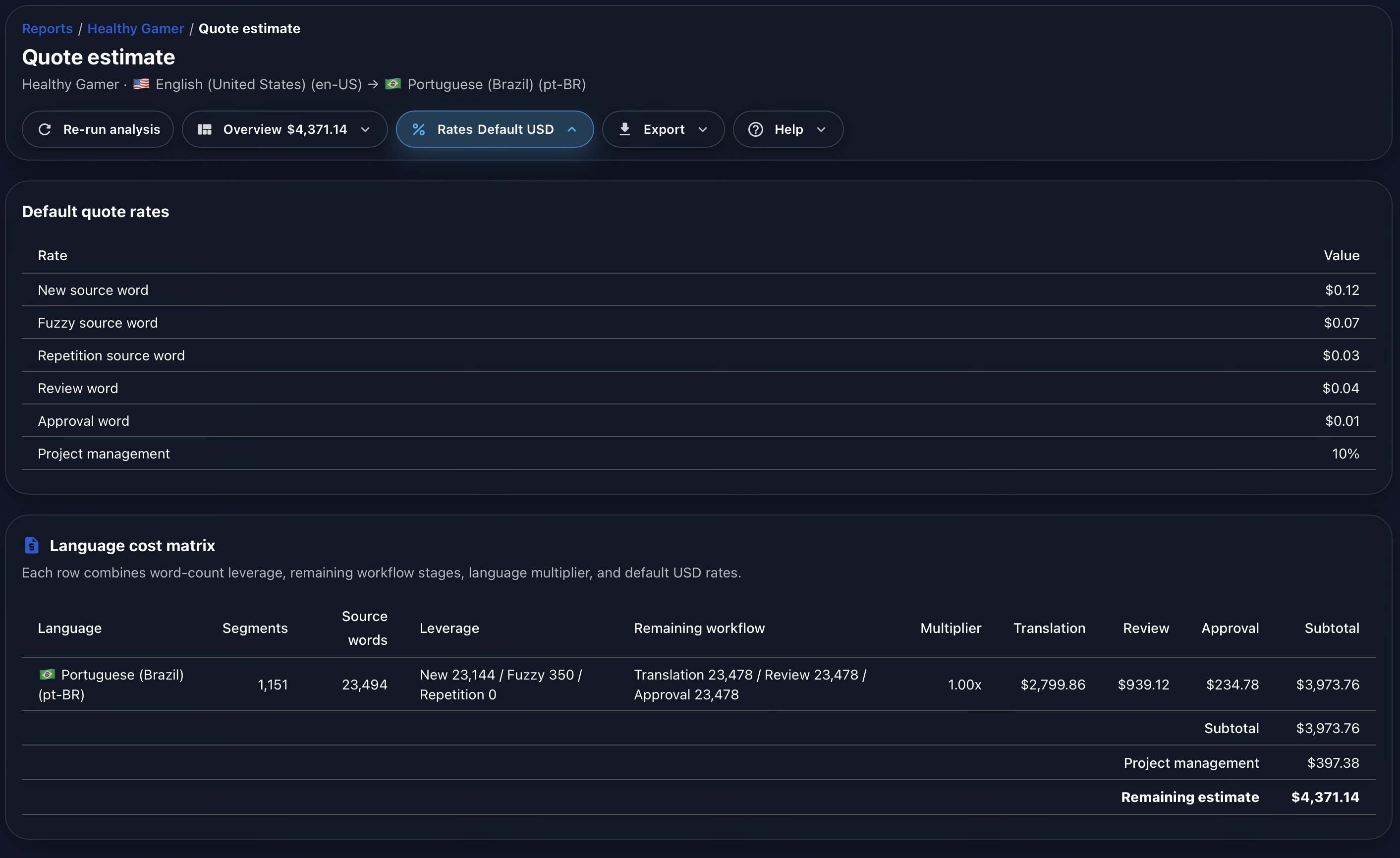
Open Rates to inspect the pricing assumptions used in the estimate. The screen shown uses default USD rates for new, fuzzy, and repeated source words, review, approval, and project management. Check these assumptions against the project’s commercial requirements; a planning estimate should be distinguished from negotiated vendor pricing.
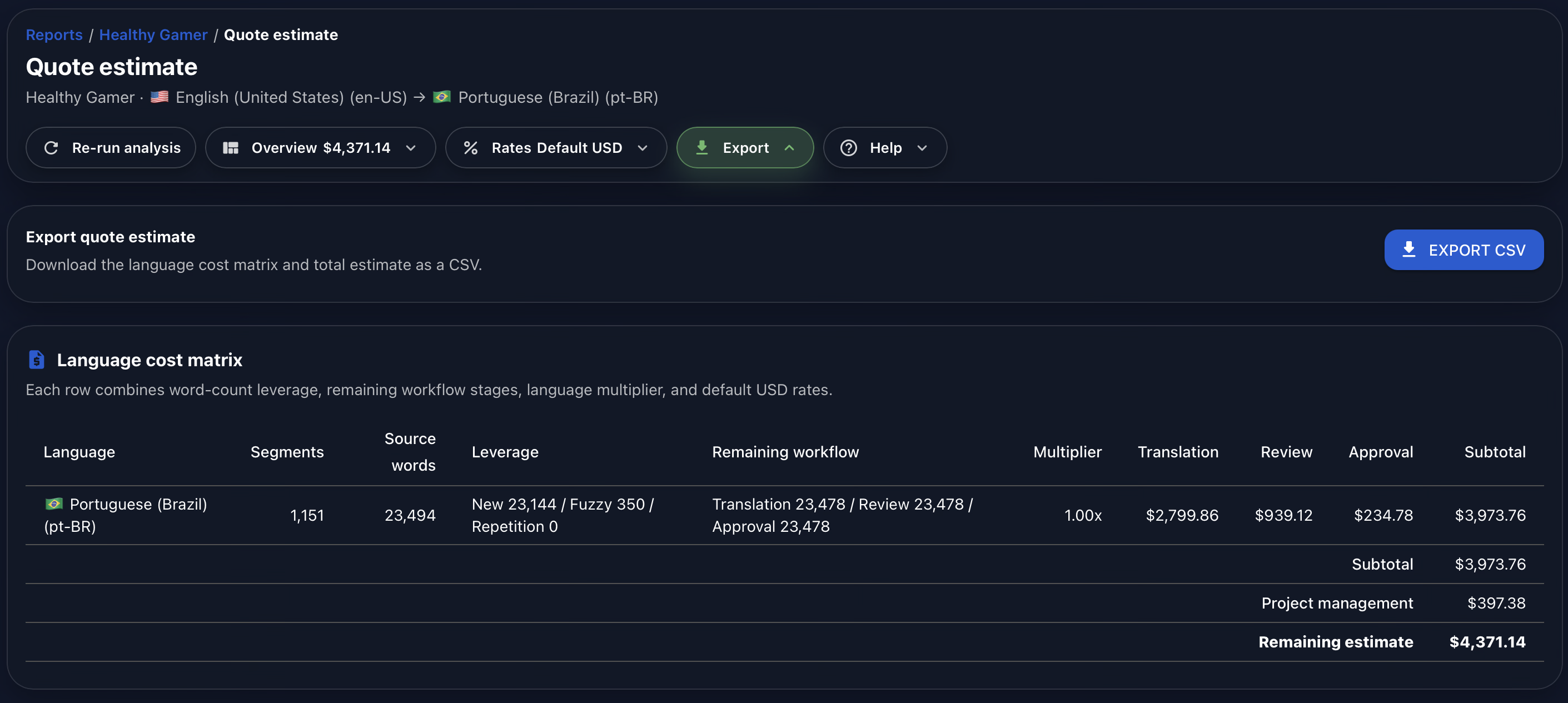
Open Export and select Export CSV to download the language cost matrix and total estimate.
Understanding the Calculation
The Help section explains what the estimate counts, what it excludes, and the assumptions used in the calculation.
Counted
- Every readable, accessible project segment contributes source words to its target-language row.
- Exact repetitions are detected per target language after trimming, lowercasing, and collapsing whitespace.
- Fuzzy leverage uses Gaia’s translation-memory match score against prior unique source strings in the same target language.
- Translation cost applies before Translated, review cost before Reviewed, and approval cost before Approved.
Excluded
- External translation-memory analysis, vendor minimum fees, rush fees, taxes, discounts, and negotiated rate cards are not modeled.
- Segments the current user cannot access are omitted.
- Empty source text contributes zero words and zero cost.
Assumptions
- Rates are default USD planning rates.
- Language multipliers are heuristic complexity factors: 1.25 for Chinese, Japanese, and Korean targets; 1.20 for Arabic, Hebrew, and Thai; and 1.00 otherwise.
- Fuzzy comparisons use length-compatible candidate buckets to keep large-project analysis responsive.
These assumptions make the estimate explainable. Where an organization needs different pricing logic, Gaia’s customizable implementation can be adapted to the agreed requirements.
Workflow Issues
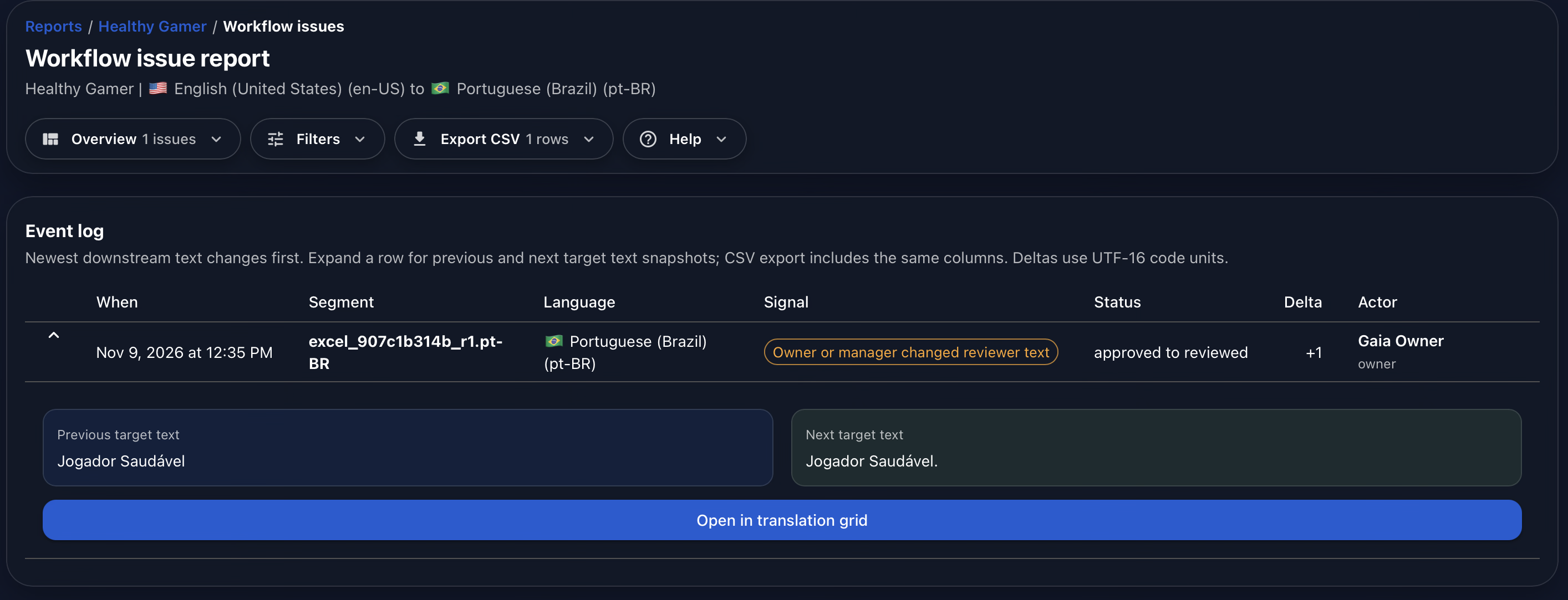
The Workflow issue report records downstream target-text changes, helping teams understand what changed during review and approval. Expand a row to compare the previous and next target text, then inspect the actor, signal, status transition, and text-length delta.
In this example, the owner added one character to the target, and the status moved from Approved to Reviewed. Select Open in translation grid to review the segment in its working context. The report also supports filtering and CSV export for further follow-up.
Conclusion
Gaia’s in-app reports connect quality, productivity, performance, and financial planning with the underlying project data. Teams can review changes, focus linguistic checks, investigate performance pressure, and understand the assumptions behind a cost estimate from the same environment.
The value comes from using each report to ask a more informed question and choose a practical next step. Combine automated signals with linguistic expertise and project context, and adapt the reporting workflow as the organization’s needs evolve.
Follow Tomori Systems on YouTube, Instagram, TikTok, and LinkedIn for more Gaia updates.