Glossary as a Source of Truth
The glossary plays a central role in Gaia because it governs the project’s most important terms. A disciplined glossary workflow helps teams keep product names, feature labels, character names, UI terms, and domain-specific language consistent across the full localization process.
This is especially important when many people are working on the same project. Translators, reviewers, project owners, and client-side stakeholders may all interact with terminology decisions. Gaia keeps those decisions visible and structured, so approved terms can support daily production instead of remaining in a separate spreadsheet or disconnected document.
As with Translation Memory, glossary entries appear contextually in the Translation Grid whenever Gaia detects a match in the source segment. This allows linguists to see relevant terminology at the moment they need it.

Accessing a Project Glossary
There are several ways to access the glossary for a project:
- In the Translation Grid, click the full glossary link while editing a segment.
- On the project card, open the action panel and select View Glossary.
- From the left navigation panel, select the Glossary section, then open the glossary from the relevant project card.
The Glossary landing page uses the same project-card pattern available in other Gaia sections. Each card keeps the project context visible, including the source and target languages, workflow-step progress, and a lower summary area dedicated to glossary-term information.

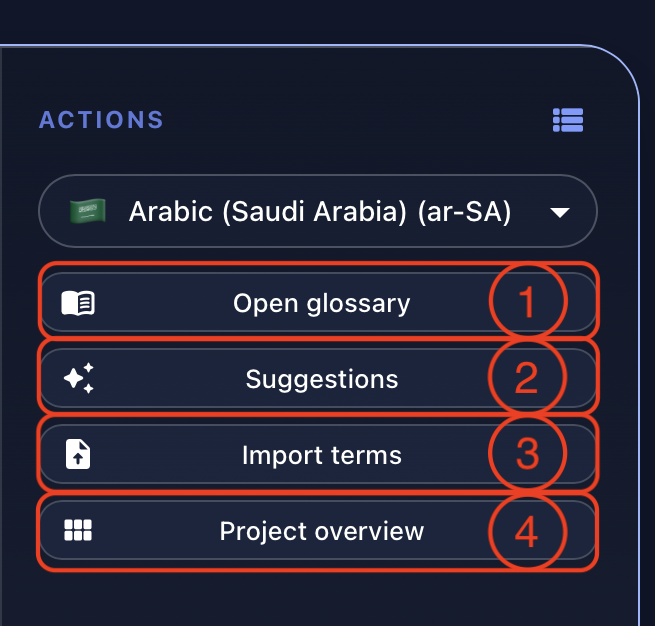
The action panel is adapted for glossary work. From the project card, you can open the full glossary details (1), review term suggestions generated by Gaia (2), batch import terms (3), or return to the main project overview (4).
Glossary Overview
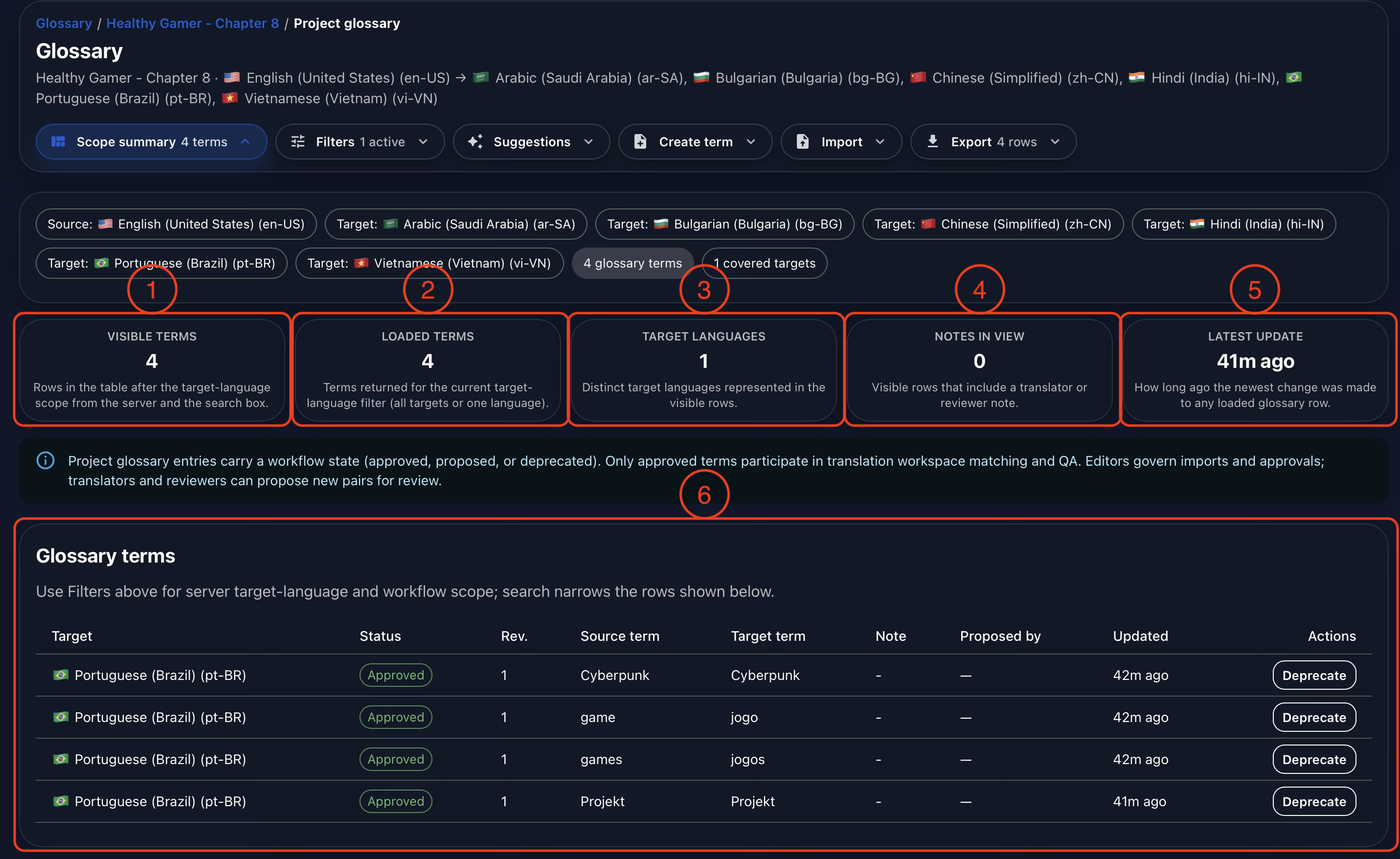
The Glossary overview helps teams understand the current term set before editing individual entries. You can filter visible terms by language or search term (1), see how many terms are loaded and available when filters are inactive (2), review the number of affected target languages (3), identify how many terms have notes (4), and check when the glossary was last updated (5).
At the bottom of the overview, Gaia displays the filtered glossary terms (6). The term list remains visible regardless of which overview button is active, so users can keep browsing the actual terminology while checking different summary states.
Term List
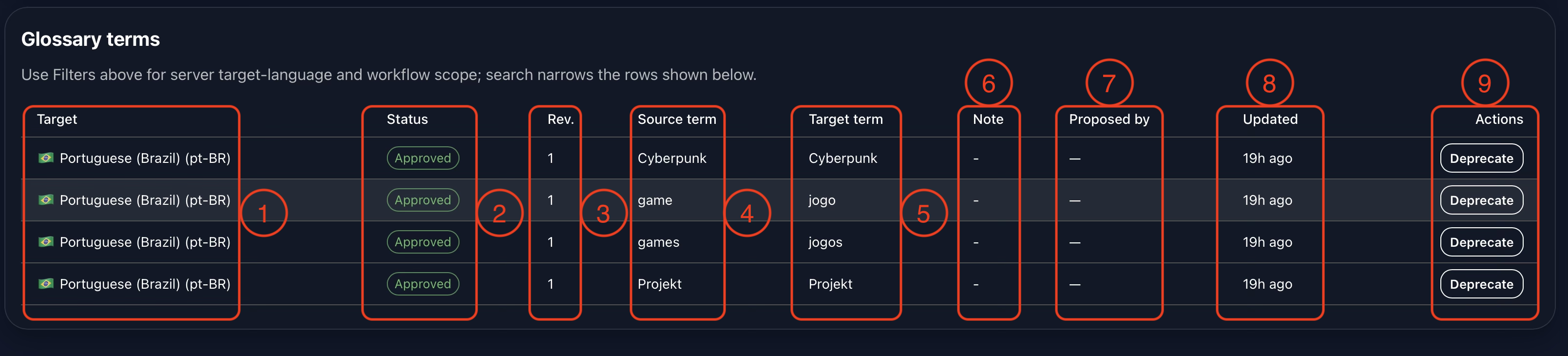
Glossary terms are presented in a table. Each row shows the target language (1), workflow status (2), revision number (3), source term (4), target term (5), note (6), the person who proposed the term (7), the last update time (8), and the available actions (9).
Glossary terms follow an approval workflow before they become available to all teams. This prevents unauthorized or still-debated terms from appearing in the Translation Grid. Only approved glossary entries are displayed as active matches during translation.
Glossary Suggestions
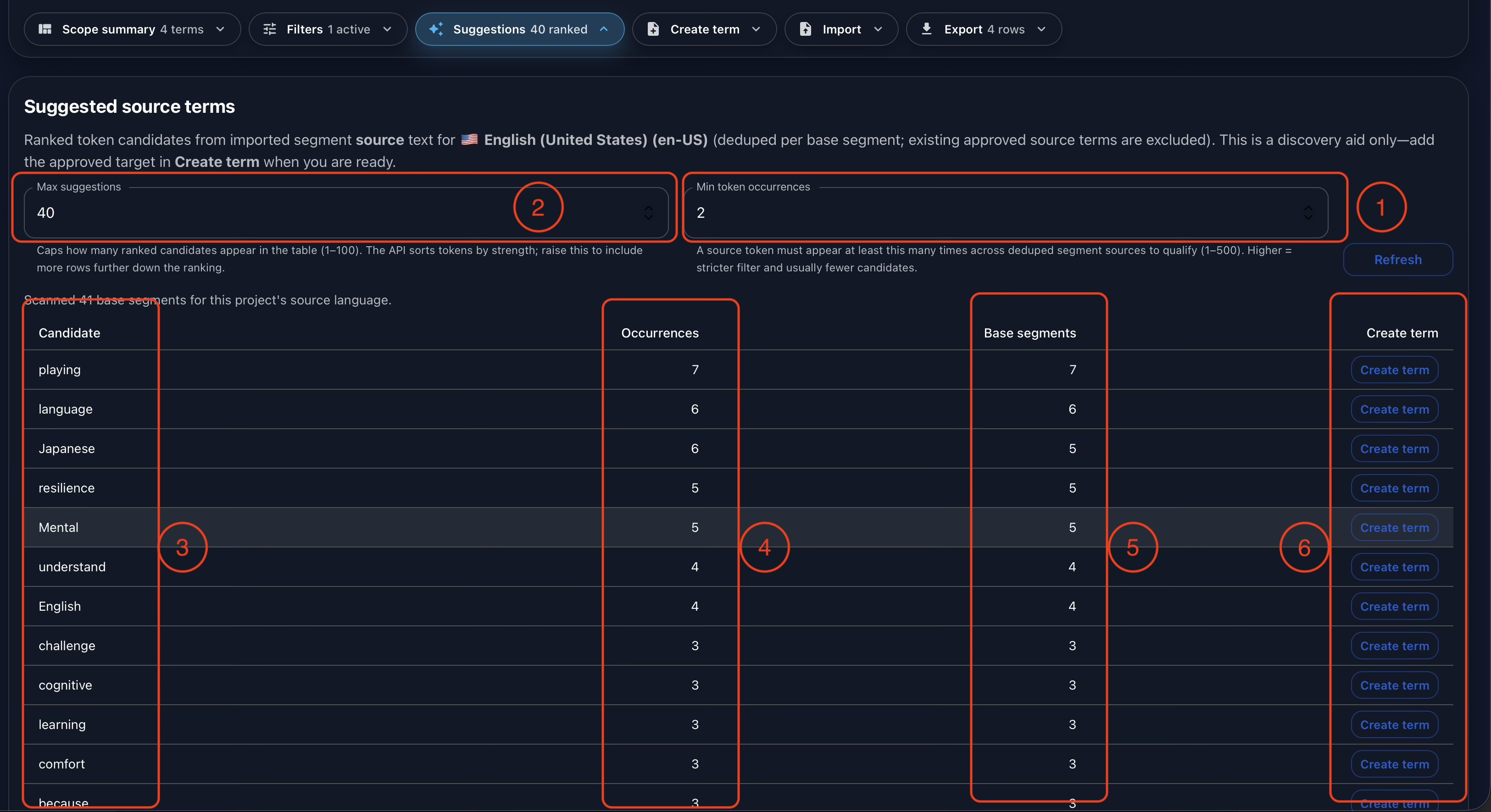
Gaia can suggest glossary candidates based on imported project content. This helps teams identify recurring terms that may deserve explicit terminology control before production begins or while a project is already underway.
Suggestions can be tuned by setting the minimum number of times a term must appear in the file (1). You can also limit the maximum number of suggested terms (2). In the results table, Gaia shows the candidate term (3), how many times it occurs in the file (4), how many segments contain the term (5), and the action to create the glossary entry (6).
Creating a Glossary Term
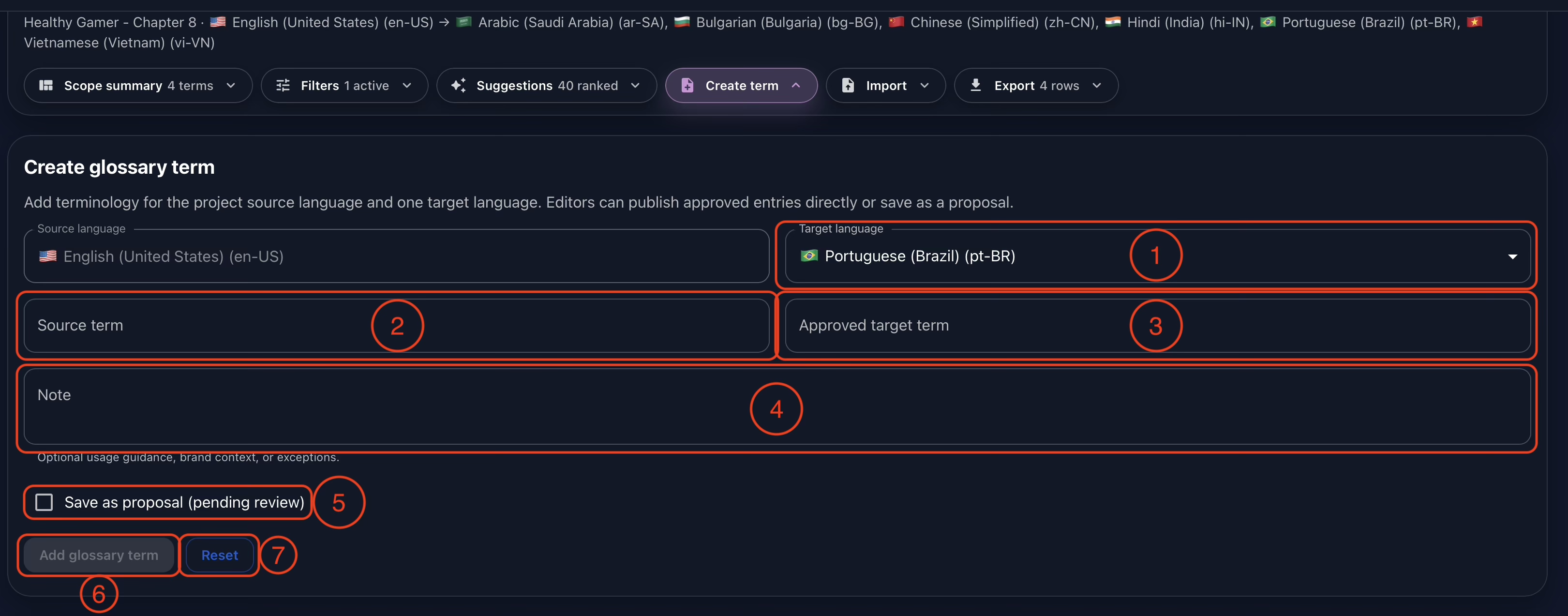
To create a glossary term manually, choose the target language (1), enter the source term (2), enter the target term (3), and add notes when helpful (4). Notes are useful for usage guidance, restrictions, product context, or stakeholder decisions that should remain visible to the team.
If the term should enter the approval workflow instead of becoming active immediately, select the proposal option (5). Then add the term (6) or reset the form (7).
Batch Import
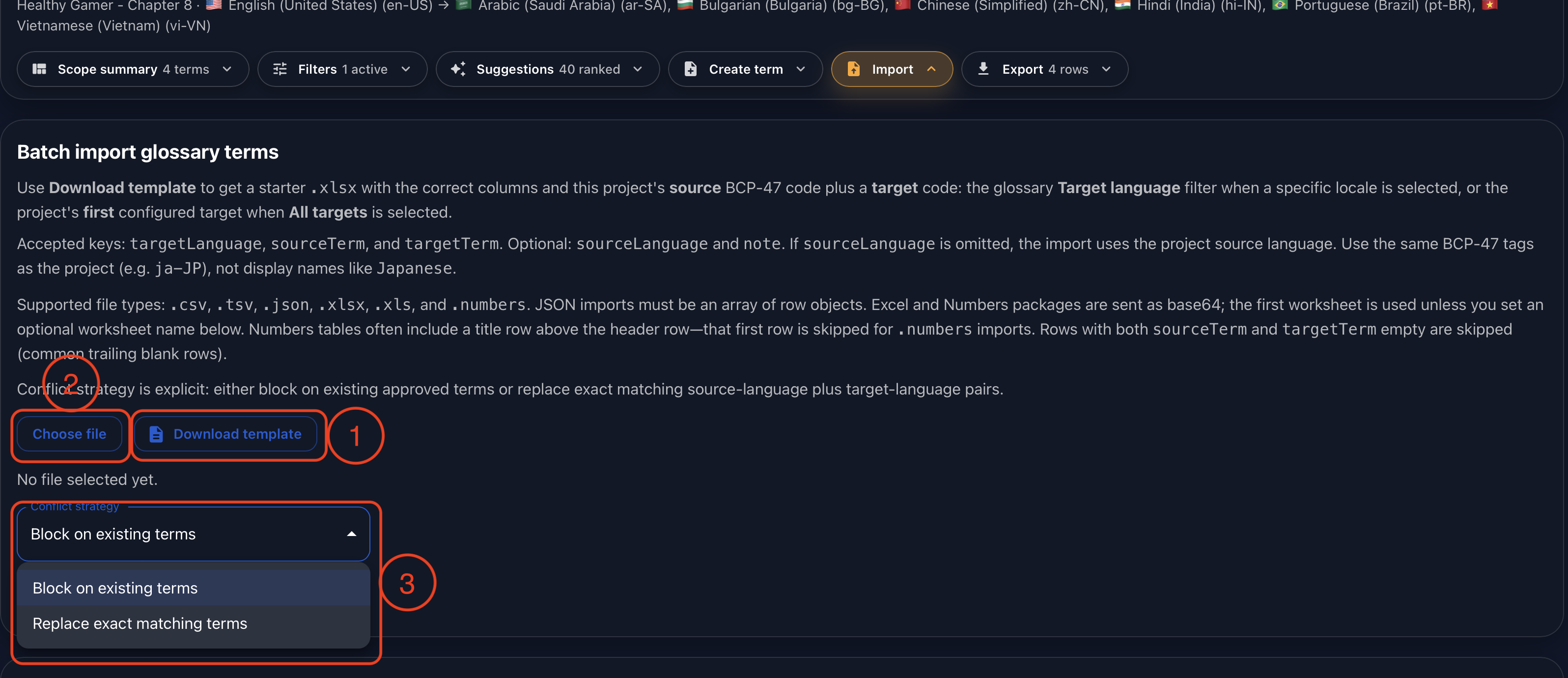
For larger terminology sets, Gaia supports batch import. The recommended first step is to download the sample file (1), because it includes the required fields and helps teams prepare the import file in the expected structure.
After filling the file with source terms, target terms, languages, and any supporting information, upload it to Gaia (2). As with Translation Memory import, you can decide how Gaia should behave when a term is already present (3). The import can block duplicate or conflicting terms, or replace the existing term when the uploaded file should become the active version.
Export
Gaia can also export the glossary file so teams can archive it, share it with stakeholders, review it externally, or use it in another controlled workflow.

Conclusion
Gaia’s Glossary is designed to make terminology practical during production. It is not only a list of terms. It is a governed project asset that appears where linguists work, supports approval decisions, and helps teams protect consistency across languages and workflow steps.
As with the rest of Gaia, the glossary workflow can be adapted to fit your operational needs. If your team requires different approval rules, import behavior, term metadata, reporting, or permissions, Gaia can be customized around those requirements.
Watch the full demonstration below.
Full Demonstration
The video walks through the full Glossary workflow, from opening the project glossary and reviewing approved terms to creating entries, generating suggestions, importing and exporting terminology, and governing the terms that appear in the Translation Grid.
Follow Tomori Systems on YouTube, Instagram, TikTok, and LinkedIn for more Gaia updates.